

Dashboard overview
A quick tour of every section in the Signals dashboard and what each one does.
Your Signals dashboard
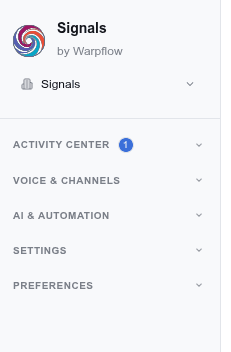
The dashboard is where you manage everything in Signals—from reviewing conversations to configuring AI replies. The sidebar organizes everything into six groups.
During a free trial, a usage banner appears at the top of the dashboard showing demo signals used vs. the trial cap. The banner changes color as you approach the limit. See Manage your plan & billing for details.
Activity Center
Your day-to-day workflow lives here.
Work Queue
Review drafts, handle callbacks, and manage escalations.
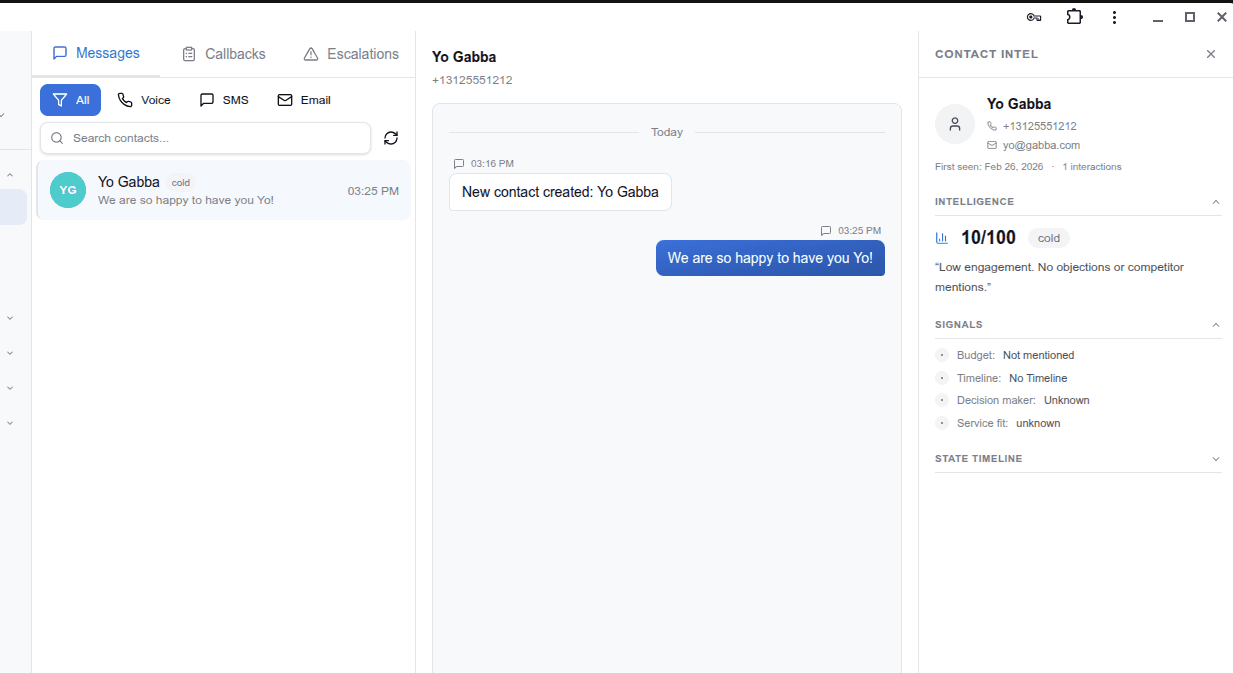
The Work Queue is your team's inbox. It shows:
- AI-generated drafts waiting for review, each showing why it was held (the AI wasn't confident enough, personal information was detected, or auto-send is disabled)
- Callback tasks: missed calls and follow-ups that need attention
- Escalations: contacts escalated by routing rules for team review
When a conversation is escalated to a human, the AI pauses and an orange takeover banner appears at the top of the thread. Click Take Over (hand icon) to handle a conversation yourself, or click "Release to AI" to return it to AI-managed mode. If reply cadence is enabled, a scheduled reply banner shows the pending AI reply with Send Now, Edit & Send, and Cancel options. See Take over a conversation for the full workflow.
System messages in the thread show you what the AI understood, which rules matched, and what actions were taken—so you always know what happened and why.
The conversation thread displays a multi-channel timeline: SMS, email, and voice messages are interleaved chronologically so you see the full picture of every customer interaction. Outbound SMS messages show delivery status (Delivered, Pending, Failed, or Unconfirmed) that updates in real time as carrier confirmations arrive. Email drafts support thread-aware replies with alias selection.
Press Cmd+F (Mac) or Ctrl+F (Windows) in any thread to search messages within that conversation. See Search contacts & conversations.
Contacts
Your lead pipeline with scoring and next-best-action recommendations.
Every contact that enters the pipeline appears here, ranked by lead score (hot, warm, cool, cold). Filter by tier, channel, state, or intent to narrow your view. The Needs Attention tab surfaces contacts requiring follow-up. Click a contact to see their full profile: scoring signals, classification summary, source channel, matched rules, and conversation history. The Next Best Action menu suggests the right follow-up: call, email, SMS, escalate, or mark as opportunity. All NBA actions require manual approval or dismissal. Decisions persist across sessions. Next Best Action is switched on for most accounts; if you do not see the menu, ask your platform owner.
The Archived tab shows soft-deleted contacts that can be restored. Use Import to bulk-add contacts from a CSV file. See Manage contacts & leads.
Conversations
Cross-channel conversation view.
See all conversations across SMS, email, and voice in a unified timeline. Messages from different channels appear in a single thread with left/right bubble layout, so you can follow the full history without switching between views.
Call History
Complete log of all calls with recordings and transcriptions.
Filter by date range and disposition (completed, missed, voicemail, transferred). Play recordings directly in the browser, view voicemail transcriptions, and download recordings for compliance. Transcripts of calls a person answered are a separate switch that starts off — see Read call transcripts.
Voice & Channels
Manage how messages and calls reach your team.
Phone
Phone numbers, call routing, ring groups, voicemail, and overflow.
Set up your inbound phone number, choose a routing strategy (Ring All, Round Robin, or Longest Idle), manage your ring group members, and configure voicemail and overflow behavior. See Set up phone & voice and Voice & Calls.
Manage an existing email connection.
New email connections are not available yet. Accounts with an existing connection can still view its status, manage available settings, or disconnect it.
The email section is hidden from navigation when account policy doesn't allow it.
Connections
Manage integrations: GHL, voice, SMS, billing, and AI provider.
View connection status for all integrations, reconnect if needed, and configure API keys. This is also where you choose between platform-managed AI and Bring Your Own Key (BYOK).
AI & Automation
Configure how AI processes and responds to messages.
Routing Rules
Your if/then logic for handling messages.
The visual rules builder lets you create conditions with AND/OR logic and assign actions like send a template, generate an AI reply, create a task, or escalate. Rules fire automatically based on priority order.
The AI Routing tab on this page controls auto-send, confidence thresholds, reply cadence, and fallback reply settings. The SMS Filters tab manages your spam blocklist—see Block spam & manage SMS blocklist.
Learn more about routing rules →
Brand Voice
How your AI replies sound.
Configure your AI persona across two tabs: Voice Identity (persona picker, tone selection) and Content Rules (preferred and prohibited vocabulary, message signature). Changes save automatically.
Learn more about brand voice →
Lead Scoring
How leads are ranked by quality.
Configure signal weights for purchase intent, lead quality, and engagement signals. Leads are scored 0–100 and sorted into tiers: hot, warm, cool, or cold. Use tiers in routing rules to prioritize high-value leads. Requires Pro or Enterprise.
Learn more about lead scoring →
Signal Guard
AI guardrails that prevent inappropriate responses.
Every AI reply passes through a two-stage check: pattern matching for prohibited phrases, followed by an AI judge evaluation against your compliance rules. Healthcare, legal, and financial presets include industry-specific Signal Guard rules.
Learn more about Signal Guard →
Templates
Pre-written messages sent by your rules.
Create and manage SMS and email templates with personalization variables. Your industry preset comes with templates ready to go. Templates pair with routing rule actions to send consistent, on-brand responses.
Test Runner
Test your setup before going live.
Paste a real customer message and see exactly how Signals would handle it: what intent is detected, lead score, which rules match, what reply would be generated, and whether Signal Guard flags anything. Nothing is actually sent. Test runs are free.
Learn more about the test runner →
Settings
Business-level configuration.
Business Info
Your business name, phone number, and email address.
These fields populate template variables like {{business_name}} and appear in AI-generated replies. Changes save automatically.
Business Hours
Your schedule, controlling after-hours behavior.
Set your timezone and weekly open/close times, plus holiday overrides. Messages outside your hours automatically trigger after-hours rules. SLA timers pause overnight.
Learn more about business hours →
Industry Presets
One-click setup for your industry.
Apply a complete configuration (routing rules, templates, brand voice, and Signal Guard compliance rules) tailored to your business type. Available for medical spas, dental, legal, home services, real estate, and more.
Learn more about industry presets →
User Management
Manage team members and escalation teams.
Escalation Teams
Create teams to handle specific types of escalations. Each team has:
- Team name and description: identify the team's purpose (for example, "Clinical Team" or "Billing Support")
- Notification channels: choose how team members are notified (push notification, SMS, or both)
- Members: assign team members from your user list
- Assignment strategy: Broadcast (notify all members), Round Robin (rotate assignments), or Least Loaded (assign to the member with the fewest open escalations)
- Callback SLA: set a target response time for escalated contacts
- Auto-escalate on breach: automatically re-escalate if the SLA is breached without a response
Assign escalation teams to escalate actions in your Routing Rules to route different types of issues to the right people.
Integrations
Connect GoHighLevel, voice, SMS, and other available integrations.
Detailed configuration for each integration, including webhook setup, CRM sync settings, and outbound messaging options.
Learn more about integrations →
Preferences
Per-user settings: each team member configures these for themselves.
Profile
Your name, phone number, and job title.
Fill out your profile so routing rules and escalation assignments can identify you. Your name appears in agent presence indicators and escalation team lists.
Notifications
Push notifications, ringtones, and alert preferences.
Subscribe to push notifications, choose which alert types you receive (incoming calls, new messages, voicemail, billing alerts), select ringtones, and test your notification setup. HIPAA tenants receive generic notification content automatically.
See Manage Notifications.
Security
Biometric and PIN lock for the app.
Set up fingerprint, Face ID, or PIN to protect the app when idle. The app locks after 5 minutes of inactivity and unlocks without signing you out.
Platform
Account management and compliance.
Plan & Billing
Your subscription, credits, and transaction history.
Three tabs: Plan & Usage (current plan, signal meters, feature availability), Credits (purchase signal and communications credit packs), and Transactions (purchase and deduction history). Usage meters are color-coded: green (under 70%), yellow (70–90%), red (over 90%).
Security & Compliance
Encryption, data handling, and compliance documentation.
Learn more about security → · HIPAA →
Notes
- Most settings pages auto-save. You'll see a "Saved" indicator when changes are persisted. No need to click a Save button on Brand Voice, Phone Routing, Business Hours, AI Routing, Business Info, or Routing Rules.
- Navigation paths in this guide use the sidebar group names (Activity Center, Voice & Channels, etc.). If you can't find a page, check the sidebar; all pages are one click away.