

Install the mobile app
Install Signals on your phone for incoming call alerts, push notifications, and quick access from anywhere.
Which version to install
| Device | Install this |
|---|---|
| iPhone or iPad | The Signals app from the App Store |
| Android | The Signals app from the Play Store |
| Desktop | The web app, installed from Chrome or Edge |
The iPhone and Android apps handle incoming calls the way a phone should: a full-screen ringing call that arrives even when the app is closed, and audio that survives you switching to another app mid-call. The web app cannot do either as reliably, which is why the native app is the recommended choice on both.
Already using the web app? Remove it first
If you added Signals to your home screen from a browser, remove it before installing the App Store or Play Store app. Otherwise you end up with two Signals icons, and push notifications go to whichever one registered most recently. For incoming calls, that means a call ringing on an app you are not looking at, which is a missed call rather than a cosmetic problem.
Removing the web app does not delete anything. Your conversations, contacts, and settings live in your account, not on the device.
iPhone (Safari)
- Press and hold the Signals icon on your home screen
- Tap Remove App
- Tap Delete App, then confirm
To clear the leftover site data as well, go to Settings → Safari → Advanced → Website Data, search for your Signals address, and swipe to delete it. This is optional.
Android (Chrome)
- Press and hold the Signals icon
- Tap Uninstall, or drag it to Uninstall at the top of the screen
- Confirm
An installed web app appears in your app drawer alongside ordinary apps, so it is easy to assume it is already the real app. Check Settings → Apps if you are not sure which you have.
Desktop Chrome or Edge
- Open the Signals window
- Click the ⋮ menu in the top corner of that window → Uninstall Signals
Or visit chrome://apps, right-click the Signals tile, and choose Remove from Chrome.
Firefox
Firefox on Android can add a site to your home screen. Press and hold the icon and tap Uninstall to remove it. Desktop Firefox never supported installing web apps, so there is nothing to remove there.
Install on iPhone
- Open the App Store and search for Warpflow Signals, or go straight to the App Store listing
- Tap Get and install
- Open the app and sign in with the email and password your administrator set up for you
If you do not have a login yet, ask your Signals administrator to invite you. Signals accounts are created by your organization, not by signing up.
Install on Android
- Open the Play Store and search for Warpflow Signals, or go straight to the Play Store listing
- Tap Install
- Open the app and sign in with the email and password your administrator set up for you
- Allow notifications when prompted. Signals rings like a phone call, so Android also asks to display over other apps and to run in the background. Both permissions are what let a call reach you when the app is closed
If you do not have a login yet, ask your Signals administrator to invite you. Signals accounts are created by your organization, not by signing up.
Install on desktop
- Open Chrome or Edge and go to your Signals dashboard address
- Click the install icon in the address bar, a monitor with a downward arrow
- Click Install
Signals opens in its own window without browser tabs and toolbars.
Set up biometric or PIN lock
On first launch, Signals asks you to set a lock method. This protects patient data and business conversations if your device is left unattended.
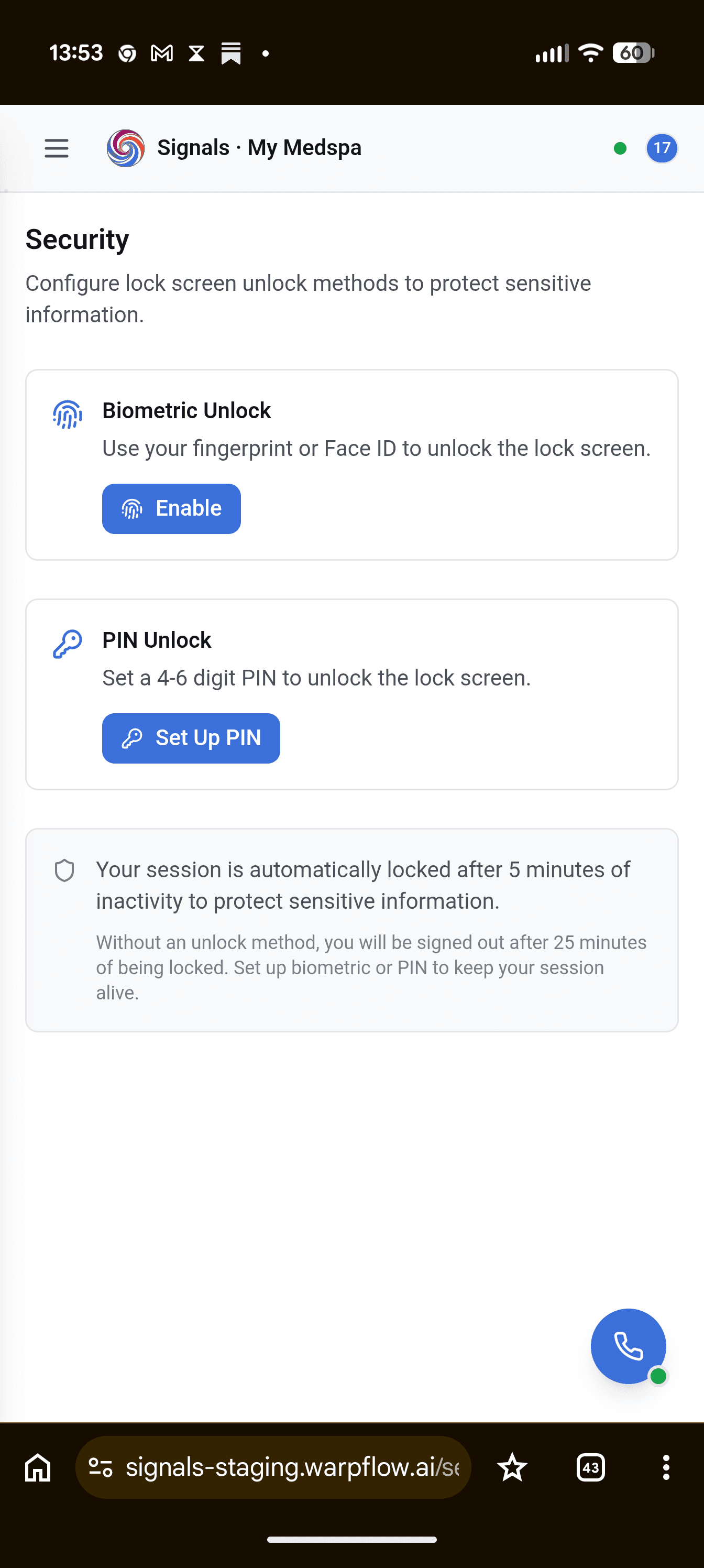
Biometric (Face ID or fingerprint):
- Tap Set up biometrics
- Complete the scan when your device prompts you
PIN:
- Tap Set up PIN
- Enter a 4–6 digit PIN and confirm it
Change the method later in Preferences → Security.
The app locks after 5 minutes of inactivity. Unlock to resume exactly where you left off. Your session stays signed in while locked.
Your fingerprint, face data, and PIN never leave your device and are never sent to Warpflow.
Allow notifications
Signals asks for notification permission on first launch. Allow it. Incoming call alerts, new message notifications, and billing alerts all depend on it.
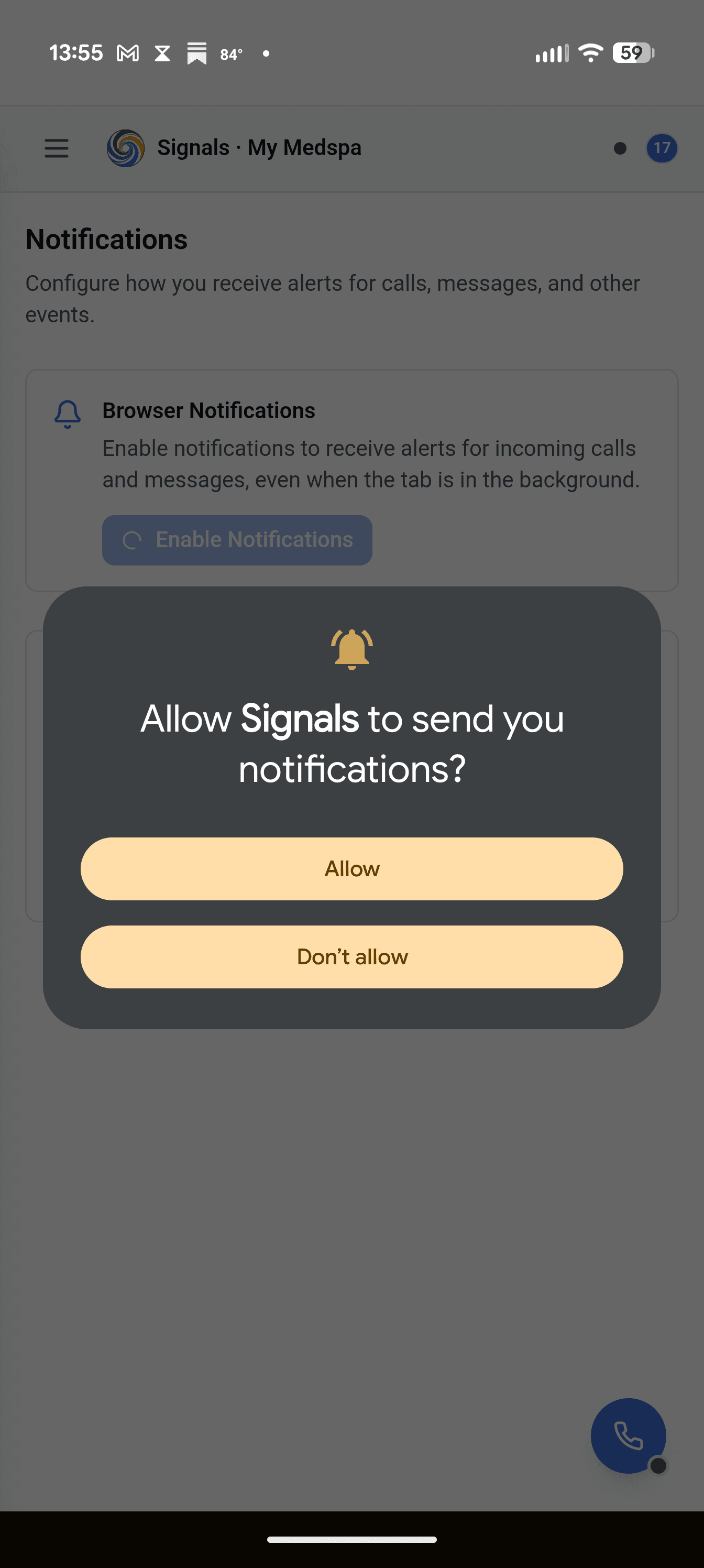
- Tap Allow when prompted
- If you dismissed the prompt, go to Preferences → Notifications and tap Enable push notifications
Permission does not carry over from the web app. Even if you allowed notifications there, the App Store app asks again, and until you allow it, calls will not ring.
Choose which notification types you receive in Preferences → Notifications. See Manage Notifications.
Troubleshooting
Two Signals icons on my home screen
You still have the web app installed alongside the App Store app. Remove the web app using the steps above, then open the App Store app and confirm notifications are still allowed.
Calls ring on the wrong app, or not at all
Almost always the same cause: two installs competing for the same push registration. Remove the web app, reopen the App Store app, and go to Preferences → Notifications to re-subscribe.
I don't see the install prompt (web app)
- iPhone: you must use Safari. Chrome and Firefox on iOS cannot install web apps
- Android: use Chrome. If you dismissed the banner, use the three-dot menu → Install app
- Private and incognito windows cannot install web apps
I'm not getting notifications
- Confirm notifications are allowed for Signals in your device settings
- On iPhone: Settings → Notifications → Signals
- In Signals: Preferences → Notifications, and check push is subscribed
- Check that Do Not Disturb or a Focus mode is not silencing them
The app feels slow or stale
Close and reopen it. Signals refreshes on launch. Pull down to refresh on mobile, or press Ctrl/Cmd+R on desktop.
Tips
- Install on every device you use. Your account works on phone and desktop at the same time.
- Allow notifications on at least your primary device. Incoming call alerts only work with push enabled.
- For HIPAA tenants: notifications deliberately show generic content, with no caller name or number, so patient information never appears on a lock screen. This is automatic and needs no configuration.