

Send a broadcast SMS
Send a personalized SMS to a group of tagged contacts in one action.
What is a broadcast?
A broadcast sends the same message to multiple contacts at once—but personalized for each recipient. Use it for appointment reminders, customer-care follow-ups, or approved promotions. The message reaches each contact's phone from your business number, and a copy is recorded in every contact's conversation thread so your team can see what went out.
Before you send
Three things need to be ready:
- Your phone number is approved to send marketing/transactional SMS. Your admin will see a green status on the 10DLC Status (or TFN Status) tab under Phone Setup.
- The contacts you want to reach are tagged. Broadcasts target groups by tag—like
vip,dec-promo, orfollow-up-week-3. - You know which category your message fits: Reminder, Customer Care, or Marketing (more on that below).
Using a toll-free number (800, 833, 844, 855, 866, 877, 888)? TFNs use a different carrier verification path — your admin will see a TFN Status tab instead of 10DLC Status. Broadcasts are unblocked when verification status is
approved. The category-to-use-case enforcement that applies to 10DLC doesn't apply to TFN (carrier rules still apply to content).
Step 1—Tag your contacts
You tag contacts so the system knows who the broadcast is for.
- Go to Contacts and click a contact to open their details.
- In the Tags area, click the tag field.
- Pick an existing tag from the list or type a new one and press Enter.
- Repeat for each contact you want in the broadcast group.
Step 2—Open the broadcast composer
- On the Contacts page, open the tag filter at the top.
- Pick the tag you just applied.
- A banner appears above the list — something like "12 contacts tagged vip" — with a Send Broadcast button. Click it.
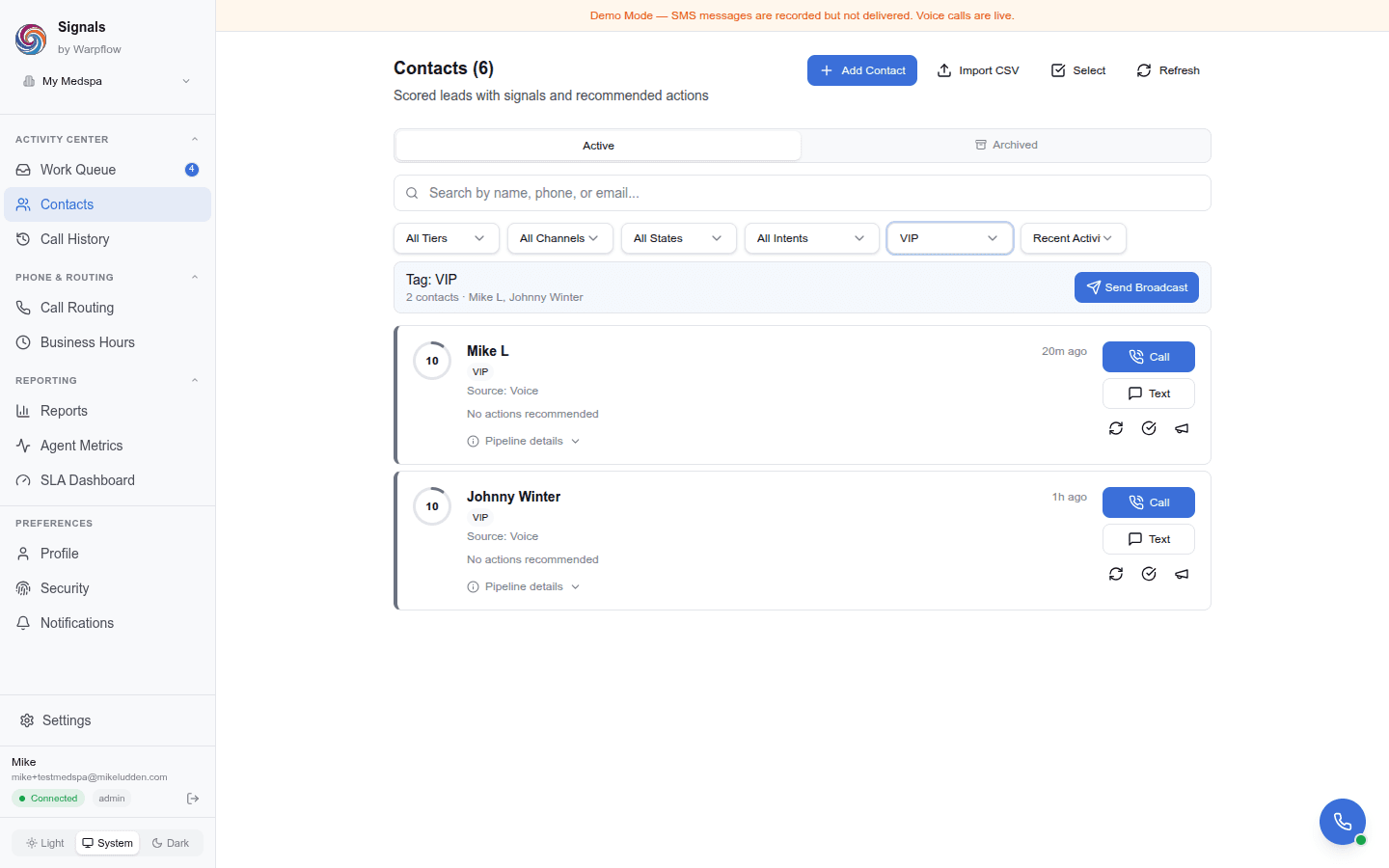
The composer slides in with those contacts already loaded as recipients.
Step 3—Pick a category
Categories describe what kind of message this is. This is important because carriers (Verizon, AT&T, T-Mobile) treat each category differently, and your number is only approved for certain types.
| Category | Use it for |
|---|---|
| Reminder | Appointment reminders, confirmations, policy renewals |
| Customer Care | Service updates, follow-up after a call, onboarding help |
| Marketing | Promotions, new service announcements, special offers |
If you pick a category your number isn't approved for, the broadcast won't send and you'll see a message telling you which use case is missing. Your admin can request that use case be added to your campaign.
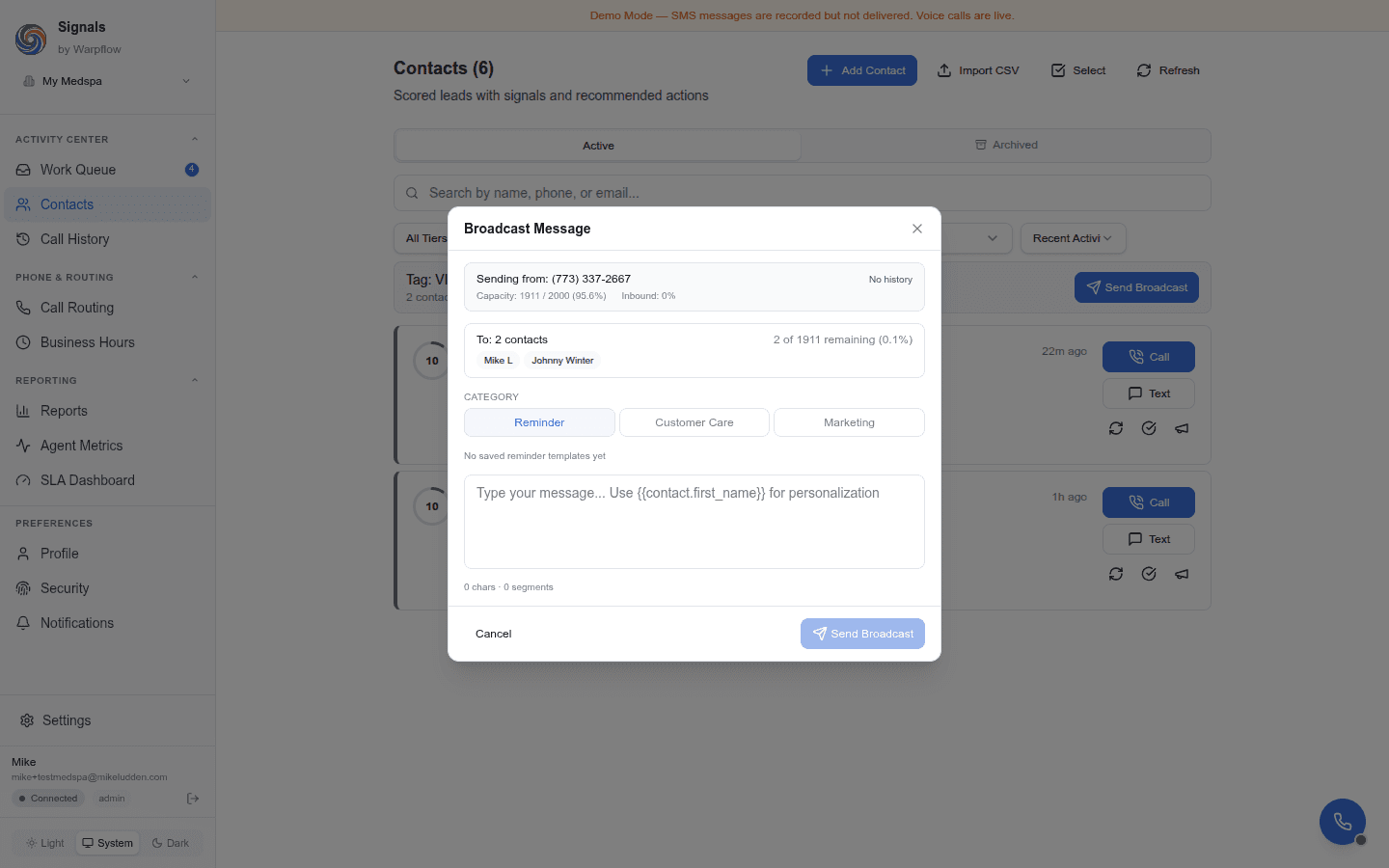
Step 4—Write the message
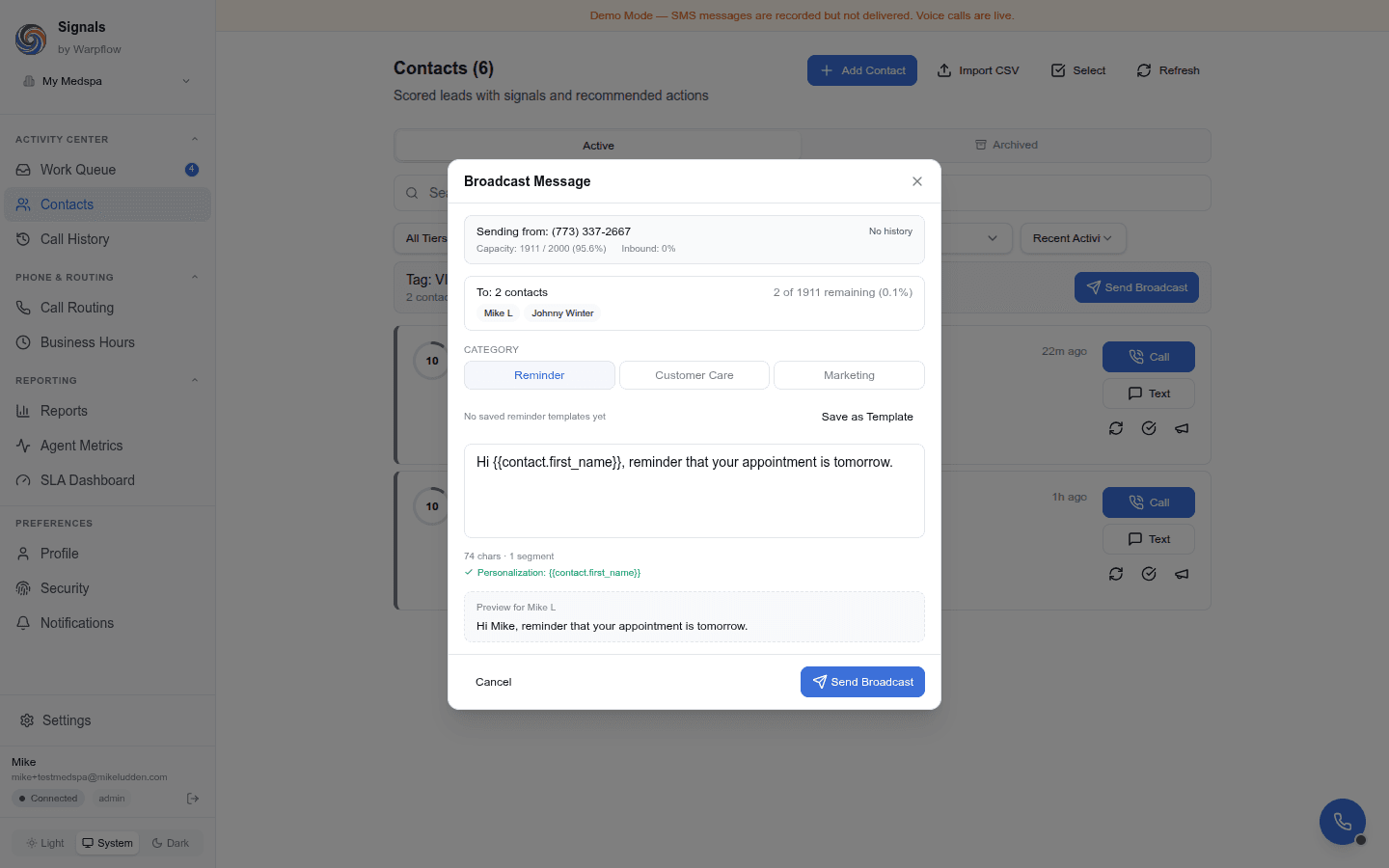
Type your message in the body field. You can personalize it with variables like this:
| Variable | What it inserts |
|---|---|
{{contact.first_name}} | The contact's first name |
{{contact.last_name}} | The contact's last name |
{{contact.name}} | The contact's full name |
{{contact.phone}} | The contact's phone number |
Example:
Hi {{contact.first_name}}, reminder that your appointment is tomorrow at 2pm.
Reply to reschedule.
For Jane Doe, that sends as:
Hi Jane, reminder that your appointment is tomorrow at 2pm.
Reply to reschedule.
If a contact doesn't have a first name on file, the message still reads naturally—you'll get "Hi, reminder..." (no awkward double space or leading comma).
Draft with AI
Not sure how to word it? Click Write with AI above the message field, describe what you want in a sentence—like "remind clients about our new holiday hours"—and click Generate. Signals drafts one shared message with personalization variables already in place. Edit it like any other message, or click Regenerate for a different take.
Never put patient details in the prompt. The AI writes one template for the whole list—it never sees any contact's information, and you should never type names, conditions, appointment specifics, or other PHI into the prompt. Personalization happens afterward, per recipient, from the variables.
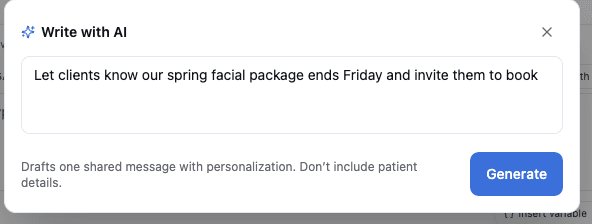
Insert a variable
You don't have to type the variable syntax by hand:
- Click Insert variable below the message field and pick one from the menu, or
- Type
{{in the message and choose from the autocomplete list that appears.
Either way the token (like {{contact.first_name}}) drops in at your cursor.
Load a saved template instead
If you've saved templates before, pick one from the dropdown next to the body field. Only templates in the selected category and SMS channel show up.
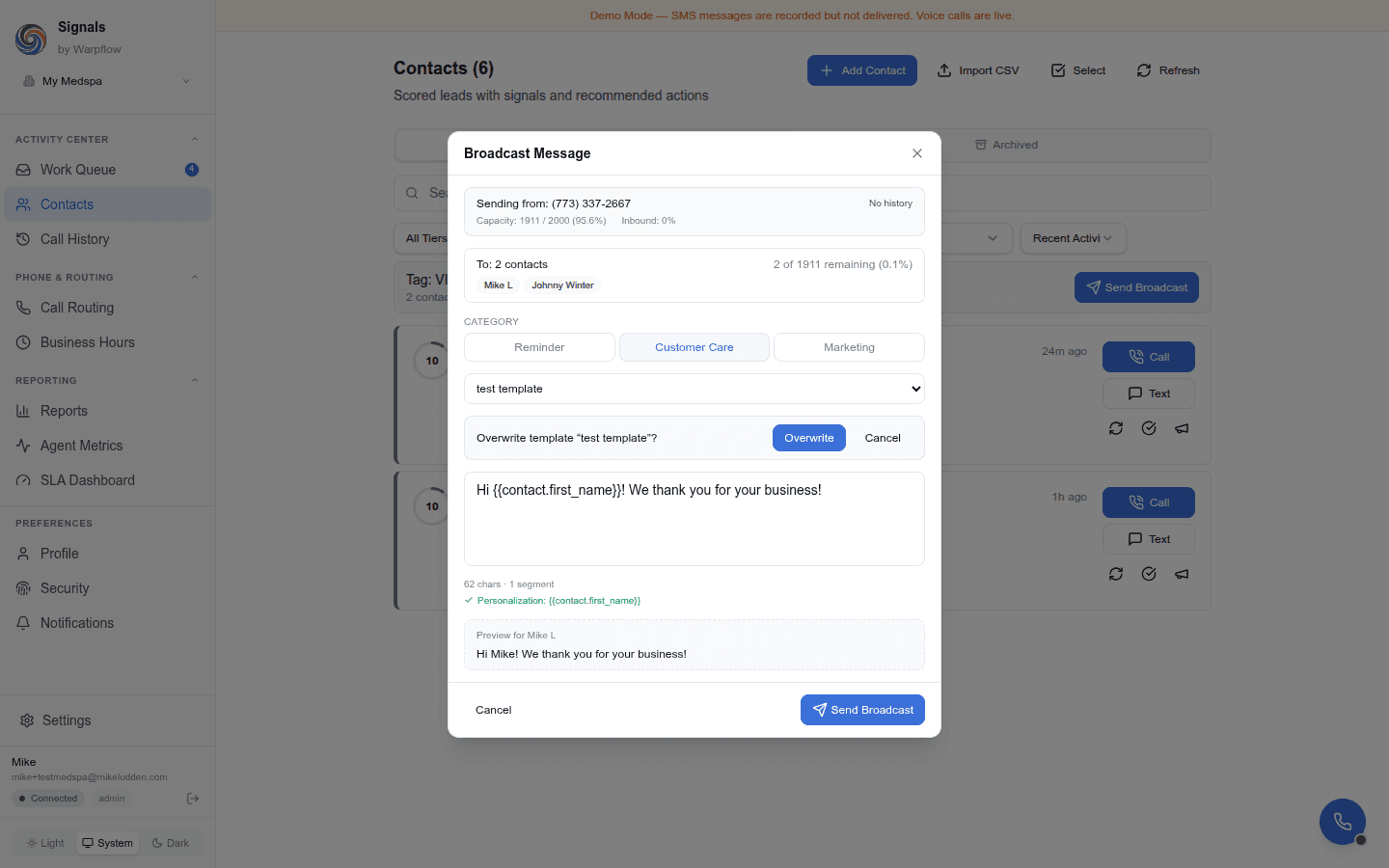
Edit a template and save changes
Load a template, edit it, and you'll see two buttons:
- Save changes—updates the existing template. Click it and you'll get a quick inline confirm ("Overwrite template X?") before the change lands. Use this when you want to improve the template for future use.
- Save as new—creates a separate template with a new name, leaving the original alone. Use this when you want a variant.
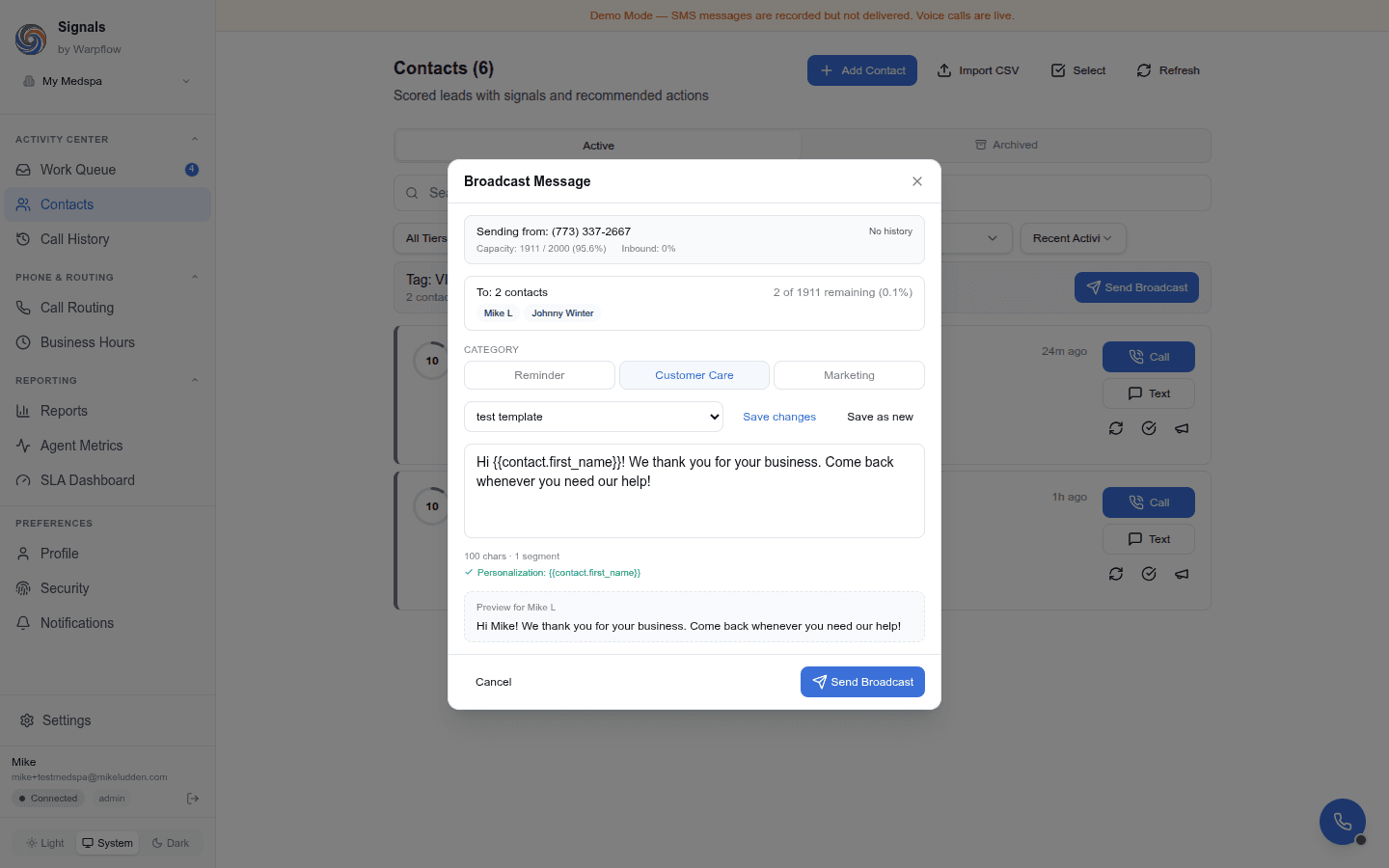
Attach an image (MMS)
To send a picture with your message—a flyer, a promo graphic, a photo—click Attach image (MMS) below the message field and choose an image. Adding an image turns the broadcast into an MMS, delivered to every recipient alongside your text.
- One image per broadcast.
- Large photos are compressed automatically. If an image is still too big to send, you'll be prompted to pick a smaller one.
- MMS bills at a higher per-part rate than plain SMS—see the cost note in Step 6.
- Remove the image with the ✕ on its preview to go back to a plain SMS.

Step 5—Check the indicators
Below the message body, a few things tell you whether the broadcast is in good shape:
- Character and segment count. Long messages split into multiple segments—hover for details.
- Personalization detected. A green check shows which variables you're using.
- Warnings in amber:
- Shortened links (
bit.ly,t.co,tinyurl.com, etc.) will be blocked—carriers reject them. Use your full website domain instead. - For marketing broadcasts, "Reply STOP to opt out" is added automatically if you haven't included it.
- Shortened links (
- Personalization recommended (for broadcasts over 10 recipients). Carriers can filter identical messages to big lists as spam, so we recommend including
{{contact.first_name}}plus{{contact.last_name}}, or varying the wording. This is a nudge, not a block—an identical message (like "Happy Holidays from the whole team!") still sends.
Rewrite a long message to fit
If your message spans more than one segment—which costs more per recipient—a Rewrite to fit action offers an AI-shortened version that keeps your personalization variables and the auto-appended STOP line intact. Review the suggestion (and the parts/cost it saves) before you accept it; you can always keep your original. Rewrite to fit applies to text only, not to MMS.

Step 6—Check your number's health
On the right side of the composer, the Number Health card tells you how your sending reputation is doing:
- Daily capacity—how many more messages your number can send today before hitting its limit.
- Delivery rate (last 24 hours)—what percent of your recent messages actually got delivered. Below 85% is a yellow warning; below 70% blocks new broadcasts until it recovers.
- Inbound ratio—how much conversation is flowing both ways. Too low looks to carriers like you're blasting one-way promos, which hurts reputation.
Hover any number for a plain-English explanation.
If anything's red or you're close to a limit, hold off and send fewer messages, or let the number rest for a day.
Running low on daily capacity? Each broadcast send counts against your plan's communications credit wallet. If you're routinely hitting daily capacity limits, grab a credit pack from the Credits tab to raise your monthly allowance. See Purchase credit packs for details.
What a broadcast costs. Messages are billed per part (segment), so a longer message that splits into multiple parts deducts more. Adding an image makes it an MMS, which bills at a higher per-part rate than plain SMS. See Communications credit usage rates for the per-tier numbers.
Step 7—Preview and send
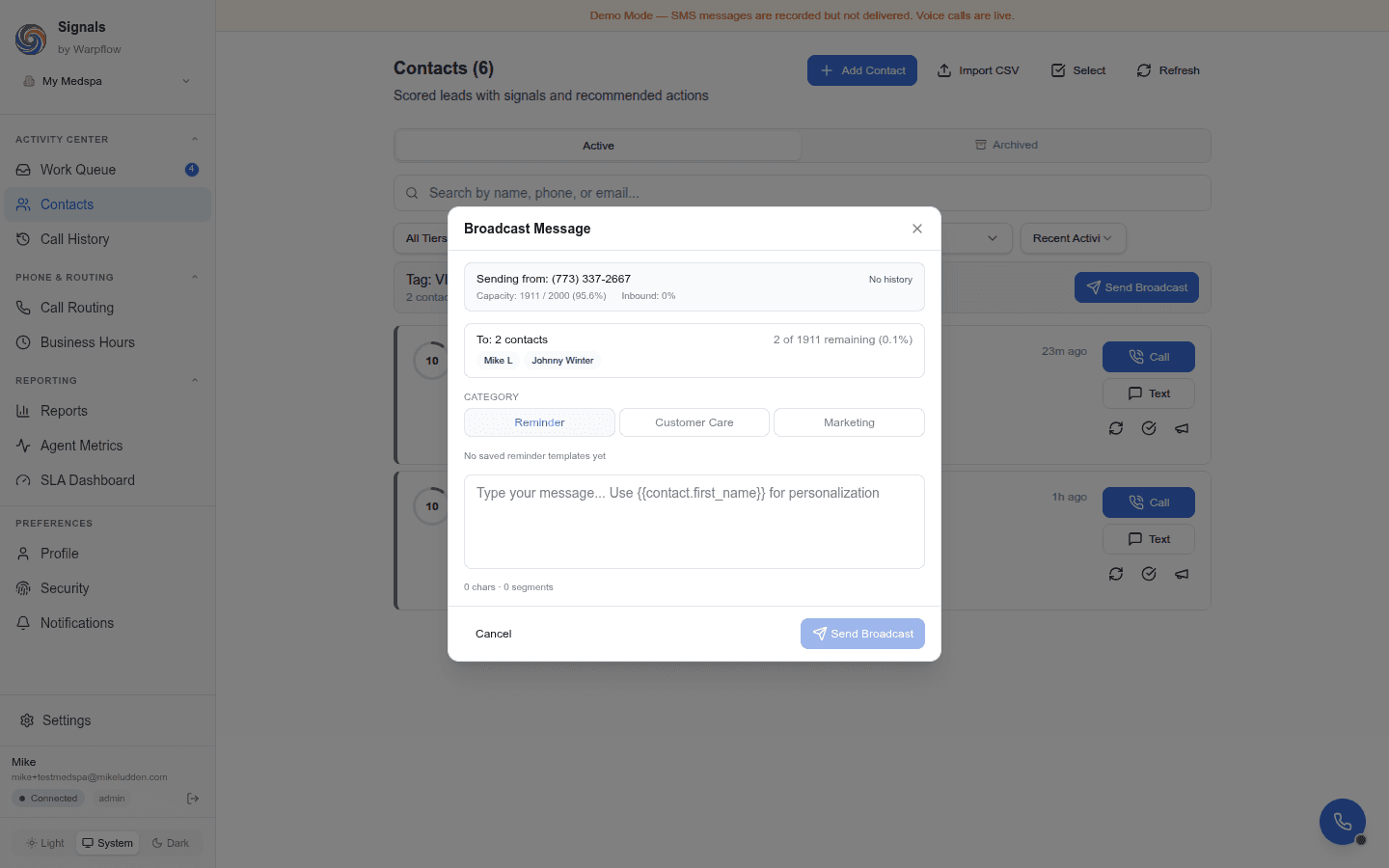
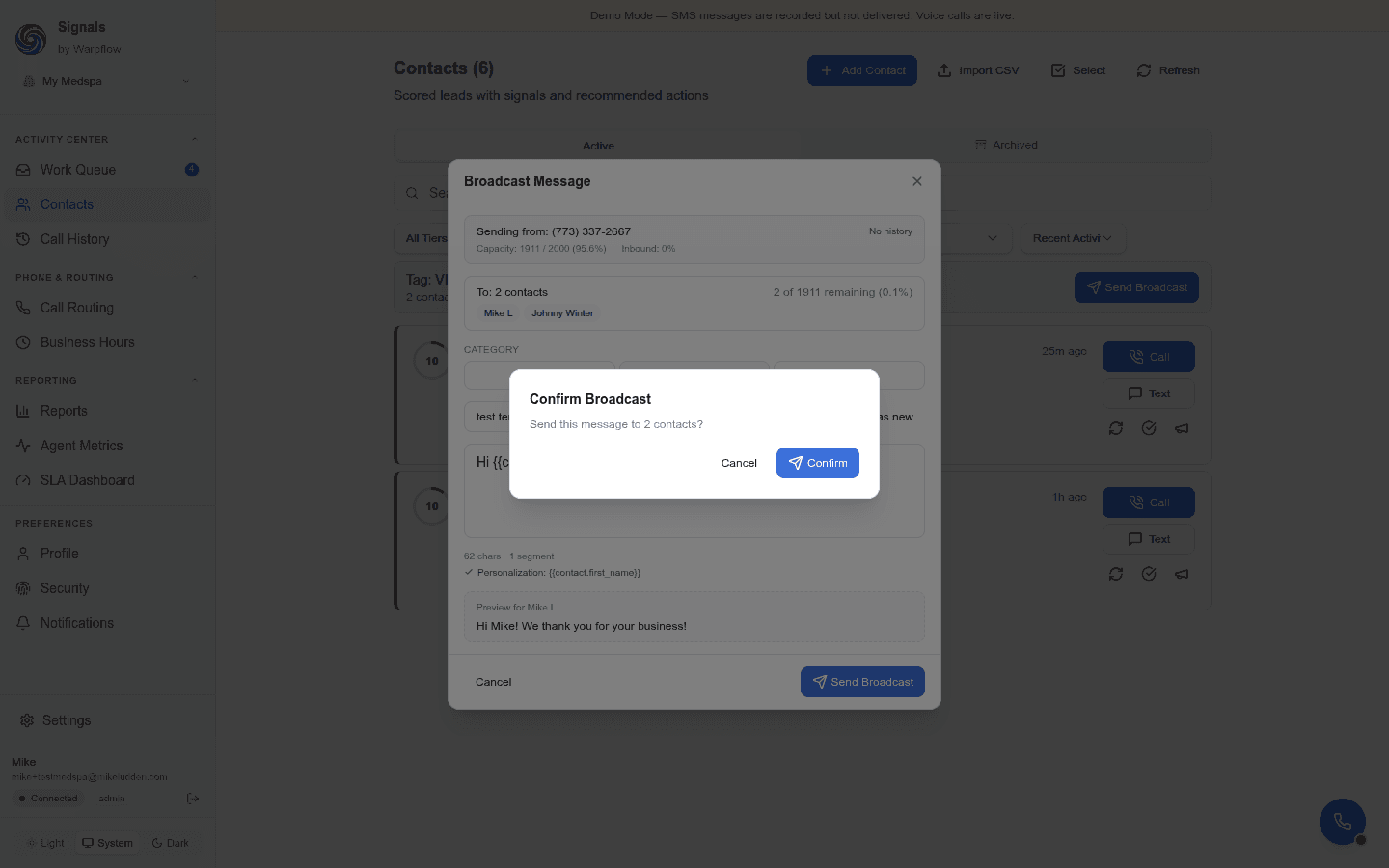
- The preview panel shows exactly how the message will look for the first contact in your list—variables filled in, auto-appended STOP text visible, everything.
- Click Send Broadcast.
- A confirmation modal shows how many recipients will receive the message. Confirm to send.
- Before it sends, you'll see the estimated Comms-credit cost for the batch. You can confirm even if the estimate might exceed your balance—Signals starts the send and pauses it if the wallet runs dry partway through, rather than failing the whole run (see If a broadcast runs low on credits).
After the send
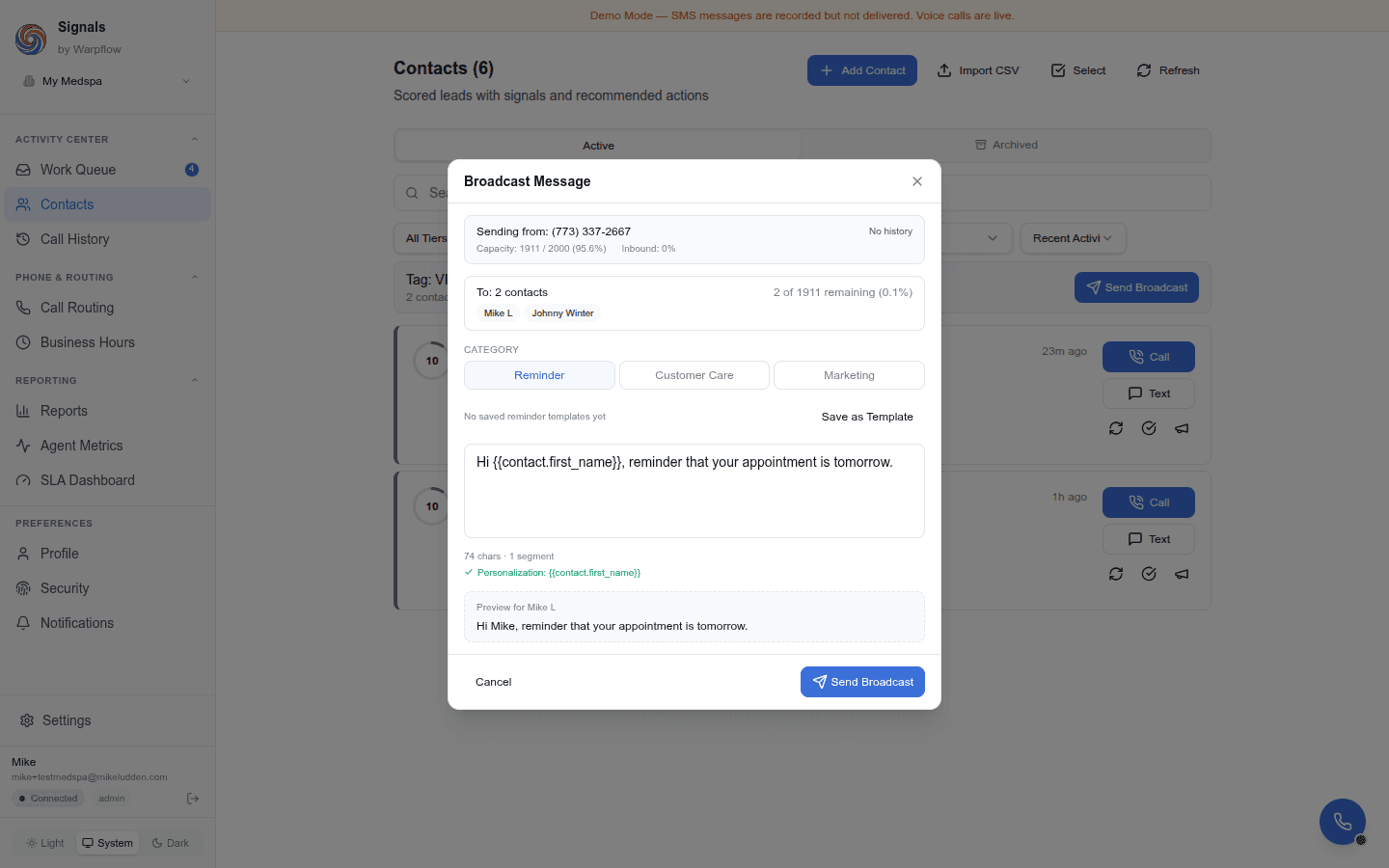
- You'll see a success message: "Broadcast queued: N messages".
- Open any recipient's conversation (Contacts → click the contact → Messages tab)—the broadcast appears as an outbound message in their thread, like any other SMS you'd send them.
- Replies from recipients route to a human, not the AI. Because a broadcast is a staff-initiated outbound, Signals treats any reply as needing human attention. The reply lands in your inbox and an agent should respond personally. AI auto-replies stay paused for that thread until a staff member sends the next message (or until you explicitly hand the thread back to AI by sending a system message).
- Why? Broadcast replies often include health, scheduling, or personal context that should reach a person, not an automated responder. This is a safety default for HIPAA / medical tenants. (If your team needs the AI to handle broadcast replies for a specific use case — e.g. a promo blast — let us know; per-broadcast opt-in is on the roadmap.)
Review your broadcasts
Open Activity Center → Broadcasts in the sidebar to see every broadcast you've sent, most recent first (anything currently paused surfaces at the top). Each row shows:
- The broadcast name and category
- Total recipients, how many were sent, and how many were delivered
- The delivery rate—the share of sent messages the carrier confirmed delivered (green at 85%+, amber below). It's a delivery rate, not a guarantee, and reads "—" until the first messages go out.
- A status badge: Sending, Paused, Completed, Canceled, or Aborted—or, rarely, Stalled in place of the badge when a mid-send is interrupted (Aborted and Stalled are explained under If a broadcast stops itself)
Per-recipient delivery also shows up in each contact's own conversation thread: the outbound broadcast message carries its delivery status, and an "Added to broadcast" note marks when the contact was included—so you can trace a single recipient without leaving their conversation.
Open a broadcast's details
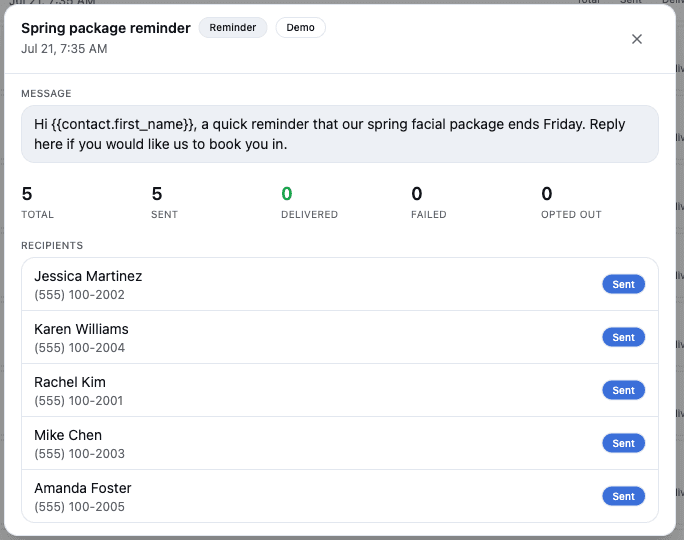
Click any broadcast in the list to open its details—the fastest way to answer "what did we send, and did it reach everyone?" without opening individual conversations:
- The exact message that went out—shown with your variables as tokens (e.g.
{{contact.first_name}}), plus the category and whether it included an image (MMS). - Delivery totals at a glance—sent, delivered, failed, and opted-out counts.
- The full recipient list—every contact the broadcast reached, each with their name and number, send status, and the carrier's delivery result (Delivered or Undelivered). If a message couldn't be sent, a plain-language reason (like carrier rejected or invalid number) shows next to that recipient.
If a broadcast runs low on credits
Each recipient send draws from your Communications credit wallet. Signals lets a broadcast start even if your balance might not cover every recipient—you'll see the estimated cost first, but you're never hard-blocked. If the wallet runs dry partway through, the broadcast pauses instead of failing silently or firing the rest of your list on empty credits.
What "paused — out of credits" means
When a broadcast pauses, a banner appears at the top of the dashboard for everyone on your team:
A broadcast is paused — out of comms credits (12 of 25 sent). Add comms credits, then resume — or cancel the rest.
- Recipients already sent stay sent—pausing never re-sends or double-charges anyone.
- The remaining recipients are held, not dropped. Nothing else goes out until you act.
- Admins and managers get Resume and Cancel buttons. Everyone else sees the awareness message and a pointer to contact their workspace admin.
- Your admins, managers, and the person who started the broadcast also get a push and email notification, so a paused send doesn't sit unnoticed.
Add credits and resume
- Open the Credits tab and purchase a Communications credit pack—credits land in your wallet immediately. See Purchase credit packs.
- Click Resume on the banner (or from the Broadcasts view).
- Signals re-checks your balance against the remaining recipients. If you now have enough, it finishes the send. If you're still short, the broadcast stays paused and asks you to add more—Resume never partially sends you into another dead end.
Broadcasts never auto-resume. Even after you top up, you decide when to continue, so credits you add for something else never accidentally fire a stale send.
Cancel a stale broadcast
If a paused broadcast is no longer relevant—the promo window closed, or you want to fix the audience first—click Cancel on the banner or in the Broadcasts view. The remaining recipients are never sent and the broadcast moves to a final Canceled state. Canceling only affects recipients who hadn't been sent yet.
If a broadcast stops itself
Signals watches how a broadcast is landing as it sends. If carriers start rejecting your messages, or delivery keeps failing, it stops the broadcast on its own rather than keep pushing a list that isn't getting through—protecting your number's reputation for every future send.
When that happens the broadcast moves to an Aborted state with a plain-language reason:
- Repeated delivery failures—too many messages in a row weren't delivered.
- A spam or filtering signal—a carrier flagged the content or the number.
- The daily send limit—your number reached its allowed volume for the day.
Recipients already sent stay sent—and you're only charged for messages that actually went out; the rest aren't sent, and aren't charged. Unlike a paused broadcast, an Aborted one is final—there's no Resume button, and it never retries on its own. To reach the contacts who didn't get it: open the Number Health card in the composer to see what's off (delivery rate, daily capacity), fix the underlying cause—message content, list quality, or simply let the number rest a day—then start a fresh broadcast to them.
Marked "Stalled"? Rarely, a broadcast that's mid-send gets interrupted before it finishes. It shows Stalled in place of its status, with how many went out so far (e.g. "3 of 25 sent") so you're never left guessing. Start a new broadcast to the remaining contacts—a one-click retry isn't available yet.
Limits to know
- Recipients per broadcast are capped per account. New accounts start at 25; your platform owner can raise the cap so a single send reaches hundreds. A larger send paces itself over a while (see What's new) — that's carrier protection, not a delay.
- 1,600 characters maximum in the message body.
- Your 10DLC brand, campaign, and phone association all need to be approved for production sending (or, for toll-free numbers, your TFN must be in
approvedstatus). - Scheduled sends (send later at a specific time) aren't available yet.
- opt-outs are always respected—if a contact has replied STOP, they're skipped automatically.
Common issues
"Campaign not approved." Your 10DLC registration isn't fully green. Ask your admin to check the 10DLC Status tab on Phone Setup and click Refresh to pull the latest status.
"Toll-free number is not verified for messaging." Your TFN verification isn't approved yet at the carrier. Ask your admin to check the TFN Status tab on Phone Setup and click Refresh. If the status is still pending, verification can take several business days at the carrier level.
"Use case not approved." The category you picked isn't one your campaign is registered for. Either change the category to one that matches your approved use cases, or ask your admin to add that use case to your 10DLC campaign.
"URL shortener blocked."
Replace bit.ly, t.co, tinyurl.com, etc. with your full website domain (like yourcompany.com/offer). Carriers block shorteners outright.
Should I personalize a broadcast to more than 10 recipients?
It's recommended, not required. Carriers can filter identical messages sent to large lists, so adding {{contact.first_name}} plus {{contact.last_name}}—or just varying the wording—improves deliverability. But an identical message still sends; the composer shows a dismissible reminder, not a hard block.
Where do I review a broadcast after sending? Open Activity Center → Broadcasts for the full history with per-broadcast delivery status (sent, delivered, delivery rate, and whether it completed, paused, was canceled, aborted, or stalled). Click any broadcast to open its details—the exact message that went out plus the full recipient list with each contact's delivery result. Each recipient's conversation thread also shows the outbound message and its delivery status. See Review your broadcasts and Open a broadcast's details.
My broadcast stopped partway through and says "paused — out of credits." Your Communications wallet ran dry mid-send. The recipients already sent are fine; the rest are held. Add a credit pack from the Credits tab and click Resume, or Cancel the rest. See If a broadcast runs low on credits.
My broadcast says "Aborted." Signals stopped it automatically to protect your number—usually repeated delivery failures, a carrier spam/filter signal, or reaching the daily send limit. Recipients already sent are fine. Check the Number Health card in the composer, fix the cause, then send a fresh broadcast to the rest. See If a broadcast stops itself.
My broadcast says "Stalled." A send got interrupted partway through; the count shows how many went out. Start a new broadcast to the remaining contacts—a one-click retry isn't available yet. See If a broadcast stops itself.
See also
- Templates—create and manage reusable message bodies for broadcasts and 1:1 sends
- SMS compliance—what to know about TCPA, HIPAA, and opt-out rules