

Routing rules
Defines if/then logic that matches inbound signals to actions. The core of how signals get processed.
Overview
Routing rules are the automation engine behind Signals. A rule is simple: "when this happens, do that." Every inbound message (SMS, email, voice) is checked against your rules, and rules that match trigger actions like sending a template, creating a task, escalating to a human, or updating your CRM.
Rules work with or without AI. You can route signals purely on channel, source, and business hours (zero AI). When AI classification and scoring are enabled, you gain access to intent, urgency, sentiment, score tier, and Signal Guard conditions.
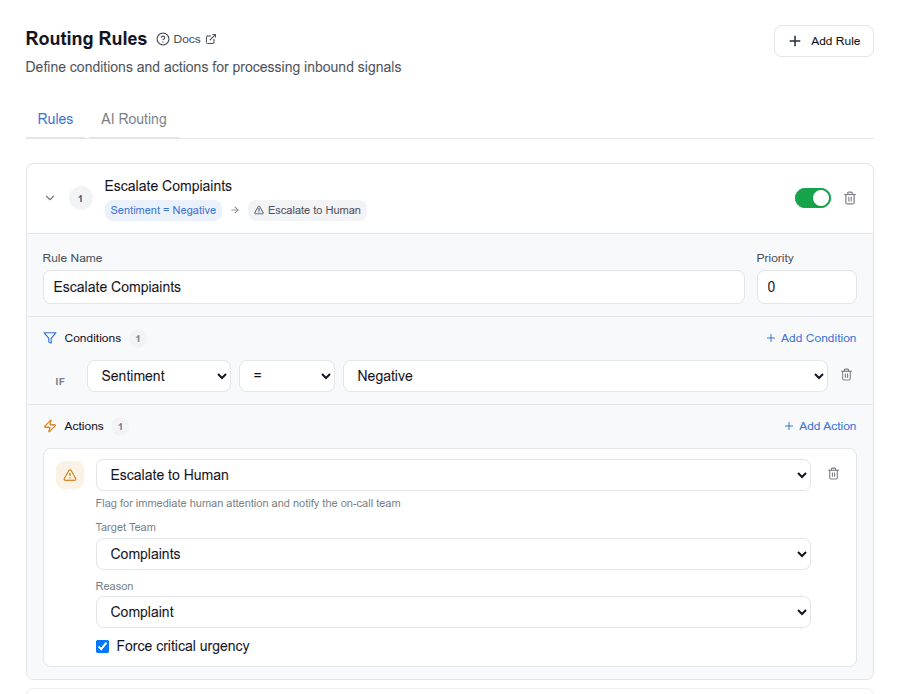
The visual rules builder
Rules are managed through a visual rules builder in the dashboard (AI & Automation → Routing Rules). The builder lets you:
- Add, edit, reorder, and enable/disable rules
- Build conditions with a field/operator/value picker
- Toggle between AND and OR logic for conditions
- Assign one or more actions per rule with configuration options
- Drag rules to change priority order
How rules are evaluated
Signal arrives
  → Classify (optional, requires AI)
  → Score (optional)
  → Evaluate rules top-down by priority
      For each enabled rule:
        Check conditions (AND or OR logic, per rule)
        If conditions match → collect actions
  → Execute all matched actions
  → If reply generated → Signal Guard evaluation
→ If Signal Guard recommends escalate/block → second routing pass (Signal Guard rules only)- Rules are evaluated in priority order (highest number first).
- All matching rules fire, not just the first match. A signal can trigger multiple rules.
- Conditions within a rule use AND or OR logic (toggle per rule in the builder).
- AND mode: all conditions must match for the rule to fire
- OR mode: any single condition matching is enough
- Rules with no conditions match every signal.
- No duplicate messages: If multiple rules would send a message to the same contact, only the highest-priority one sends. This prevents customers from receiving duplicate messages.

Conditions
Each condition has three parts: field, operator, and value.
Available fields
| Field | Description | Requires AI |
|---|---|---|
classification.intent | Detected intent (for example, booking_request, complaint) | Yes |
classification.urgency | Urgency level: low, medium, high, critical | Yes |
classification.sentiment | Sentiment: positive, neutral, negative | Yes |
score.tier | Lead tier: hot, warm, cool, cold | Yes |
score.score | Numeric score (0–100) | Yes |
channel | Message channel: sms, email, voice, chat, webhook | No |
source | Event source: missed_call, ghl, twilio, zapier, gmail | No |
_is_after_hours | true if outside business hours | No |
Signal Guard condition fields
These fields become available after Signal Guard checks an AI reply. Use them to create rules that respond when Signal Guard flags something (for example, automatically escalating a reply that needs expert review).
| Field | Description |
|---|---|
_guardrail_violation | true if the reply was flagged by Signal Guard |
_requires_expert | true if the topic needs a licensed professional |
_guardrail_recommendation | send, review, escalate, or block |
_guardrail_risk_level | none, low, medium, high |
Operators
| Operator | Label | Description |
|---|---|---|
eq | = | Equals |
neq | ≠ | Not equals |
contains | contains | String contains |
gt | > | Greater than (numeric) |
lt | < | Less than (numeric) |
gte | ≥ | Greater than or equal |
lte | ≤ | Less than or equal |
in | in | Value is in list |
not_in | not in | Value is not in list |
Action types
Each rule can trigger one or more actions. All 12 action types:
| Action | Description | Requires Integration |
|---|---|---|
| log | Write to audit trail | None |
| send_template | Send a pre-written template via SMS or email | SMS or Email |
| create_draft | Draft a reply for human review | None |
| generate_reply | AI-generate a contextual reply (see AI routing below) | AI provider |
| create_task | Create a callback/follow-up task | None |
| escalate | Flag for immediate human attention (can assign an escalation team) | None |
| send_form_link | Send a link to an intake form | SMS or Email |
| update_crm | Tag, update contact, or move opportunity stage | GoHighLevel |
| forward_call | Forward a voice call to another number | Phone |
| start_nurture | Enroll in an automated follow-up sequence | None |
| trigger_webhook | Send data to an external URL | None |
| notify_slack | Post a notification to a Slack channel | None |
Actions that require an integration still work if that integration isn't connected—they just log what they would have done instead of executing. This means you can set up rules before connecting all your integrations.
Template-based actions
send_template, create_draft, send_form_link, and start_nurture can reference a template by ID. Templates are configured on the Templates page.
Data fields
Some actions accept additional configuration:
- create_task:
reason(text),priority(high/medium/low) - trigger_webhook:
url(the webhook endpoint) - notify_slack:
webhook_url(Slack incoming webhook URL) - update_crm:
tag,pipeline_stage,notes - forward_call:
phone(destination number)
Priority and ordering
- Higher priority number = evaluated first.
- Industry presets assign priorities: general rules at 0–10, Signal Guard escalation rules at 100.
- When multiple rules match, all their actions execute. There is no "first match wins." This is intentional so you can layer behaviors (for example, both send a template and create a task).
Industry presets
Applying an industry preset loads pre-configured rules. For example, the General preset includes:
- Missed call → SMS follow-up + callback task
- After hours → after-hours acknowledgment
- Booking request → booking confirmation template
- Complaint → escalate + create high-priority task
- General inquiry → acknowledgment template
Compliance-sensitive industries (medical, insurance, legal, financial, dental) also get a default Signal Guard escalation rule that routes expert-knowledge requests to human review.
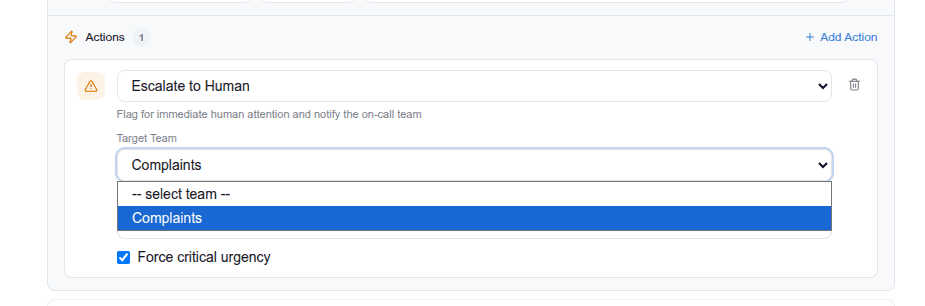
Escalation teams
When a rule uses the escalate action, you can assign it to a specific escalation team. Teams are groups of agents who handle specific types of escalations.
Creating teams
Create and manage teams in Settings → User Management → Escalation Teams. Each team includes:
- Team name and description: identify the team's purpose (for example, "Clinical Team" or "Billing Support")
- Notification channels: choose how members are notified (push notification, SMS, or both)
- Members: assign users from your team list
Assignment strategies
Each team uses an assignment strategy that controls how escalations are distributed:
| Strategy | Behavior |
|---|---|
| Broadcast | Notify all team members simultaneously. First to respond owns it. |
| Round Robin | Rotate assignments evenly across team members. |
| Least Loaded | Assign to the member with the fewest open escalations. |
Callback SLA and auto-escalation
Set a callback SLA (target response time) for each team. If the SLA breaches without a response, the system can auto-escalate: re-notify the team or escalate to a supervisor, depending on your configuration.
Human takeover behavior
When a conversation is escalated, the AI pauses for that contact. An orange takeover banner appears in the Work Queue conversation thread with a "Release to AI" button. While the banner is active:
- The AI will not generate or send replies for that contact
- The assigned team member handles the conversation manually
- Clicking "Release to AI" returns the conversation to AI-managed mode
Using teams in rules
- Assign a team to any
escalateaction in the rules builder - When the rule fires, team members are notified based on the assignment strategy
- Escalated contacts appear in the Escalation Queue tab of the Work Queue
This lets you route medical questions to your clinical team, legal questions to your compliance team, and billing issues to your office manager, all automatically.
AI routing & approval gate
When a rule fires a generate_reply action, the reply goes through the AI routing approval gate before reaching the customer.
- If auto-send is on and confidence meets the threshold → reply sends automatically
- If auto-send is off or confidence is below threshold → reply is held in the Work Queue as a draft
- Held drafts show why they were held (confidence too low, personal information detected, or auto-send disabled)
Configure AI routing settings (auto-send, confidence threshold, fallback replies) on the AI Routing tab of the Routing Rules page. See Set up AI routing for details.
Tips
- Start with an industry preset and customize from there.
- Use the Test Runner to verify rules match as expected before going live.
- Use AND/OR mode to build complex conditions without creating duplicate rules. For example, OR mode lets you match "intent = booking_request OR intent = general_inquiry" in a single rule.
- Zero-AI rules work immediately. You don't need an API key to route on channel, source, and business hours.
- Signal Guard rules only fire after AI replies are checked. They won't match during normal routing because Signal Guard hasn't evaluated the reply yet.
- Changes save automatically. Edits to rules, conditions, and actions persist as you make them.