

Manage contacts & leads
Use the Contacts page to view your lead pipeline, check scores, and take the next best action on every contact.
Overview
The Contacts page is your lead pipeline. Every contact that enters the Signals pipeline appears here, scored and ranked so you can focus on the leads that matter most.
Navigate to Contacts
Go to Activity Center → Contacts in the sidebar.
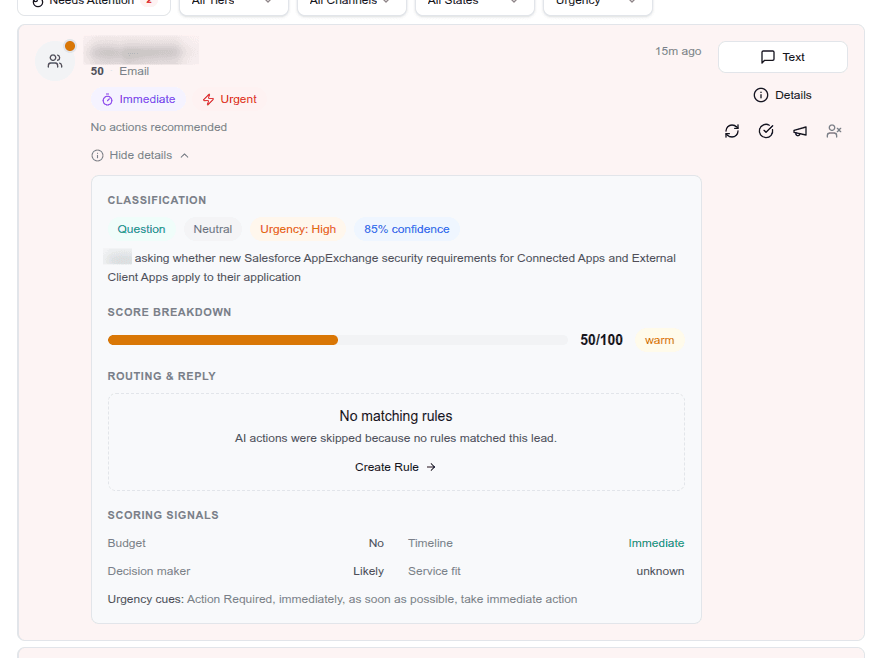
Pipeline view
Contacts are displayed with lead tier indicators based on their score:
| Tier | Score range | Visual indicator |
|---|---|---|
| Hot | 75–100 | Red badge |
| Warm | 50–74 | Orange badge |
| Cool | 25–49 | Blue badge |
| Cold | 0–24 | Gray badge |
Filter & sort contacts
Use the filter bar above the contact list to narrow your view:
| Filter | Options |
|---|---|
| Tier | Hot, Warm, Cool, Cold |
| Channel | SMS, Voice, Email, Import |
| State | Pipeline stage (new, contacted, qualified, etc.) |
| Intent | Based on your industry preset (booking, inquiry, etc.) |
| Sort | Score (highest first), Name, Last Activity |
Combine multiple filters to focus on specific segments—for example, show only hot leads from SMS with booking intent.
The Needs Attention tab surfaces contacts that require follow-up: missed callbacks, stale escalations, and high-score leads without recent activity.
For full-text search across contacts and conversations, see Search contacts & conversations.
Contact detail panel
Click a contact to open the detail panel. It shows:
Contact intel:
- Phone number, email
- Source channel: shows how the contact first reached you (SMS, Voice, Email, or Import) and the most recent channel they used
- First seen date and last activity, each with the channel indicated (e.g., "2 weeks ago via SMS")
Scoring signals:
- Purchase intent signals (budget mentioned, timeline)
- Lead quality signals (decision maker, service fit)
- Engagement signals (response speed, multiple touchpoints)
- Overall score and tier
Classification summary:
- Intent (booking request, complaint, general inquiry, etc.)
- Urgency (low, medium, high, critical)
- Sentiment (positive, neutral, negative)
- Category
Matched routing rules:
- Which rules fired for this contact's signals
- What actions were triggered
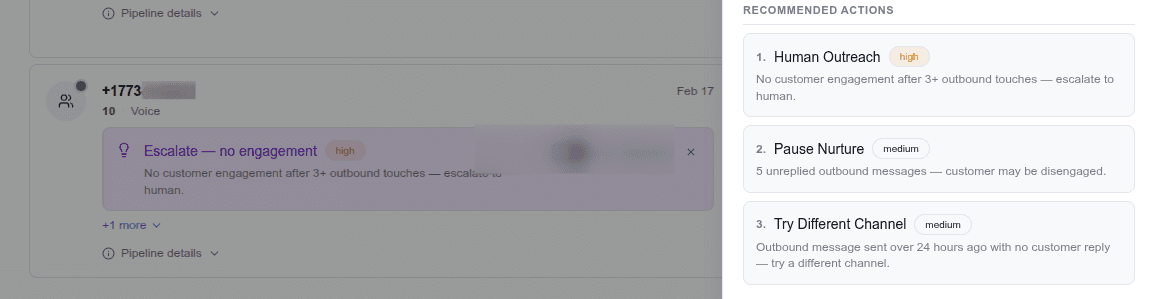
Next Best Action (NBA)
The NBA menu suggests the right follow-up for each contact. Available actions:
| Action | What it does |
|---|---|
| Call | Open the softphone and dial the contact |
| Compose an email using a template or free-form | |
| SMS | Send an SMS using a template or free-form |
| Mark as opportunity | Move the contact to your opportunity pipeline |
| Mark as qualified | Flag as a qualified lead |
| Escalate to team | Assign to an escalation team for specialized follow-up |
| Add to follow-up | Create a follow-up task in the Work Queue |
Actions execute immediately and update the contact's record.
Relationship to the Work Queue
Contacts and the Work Queue are connected but serve different purposes:
- Work Queue: your inbox for pending actions (drafts to review, callbacks to make, escalations to handle)
- Contacts: your full pipeline view for proactive outreach and lead management
A contact can appear in both places. For example, a hot lead might have a pending callback in the Work Queue and also be visible in the Contacts pipeline for a proactive call.
Archived contacts
When you delete a contact, it moves to the Archived tab rather than being permanently removed. This preserves the full audit trail.
- Click the Archived tab to view deleted contacts
- Click Restore to reactivate an archived contact and return it to your pipeline
- Archived contacts cannot be edited—restore them first
If you import a CSV that includes a phone number matching an archived contact, the contact is automatically restored.
Import contacts via CSV
To bulk-import contacts:
- Go to the Contacts page and click Import
- Drag and drop a CSV file or click to browse
- Review the preview—Signals maps common column names automatically (Name, Email, Phone, Notes)
- Click Import to confirm
Import details:
- Maximum: 500 contacts per file
- Duplicate detection: contacts with a matching phone number or email merge with existing records rather than creating duplicates
- Source channel: imported contacts are tagged with Import as their source channel
- Flexible headers: columns like "Full Name," "Contact Name," or "Mobile" are recognized automatically
Tips
- Focus on hot leads first. Filter by tier = hot to see your highest-value contacts.
- Use the Needs Attention tab. It surfaces contacts requiring action so you don't have to scan the full list.
- Use NBA actions directly from the pipeline. You don't need to leave the Contacts page to call, email, or escalate.
- Check scoring signals. The detail panel shows you exactly why a lead scored the way it did (budget mentioned, timeline urgency, decision-maker status, etc.). Use this to personalize your follow-up.
- Review regularly. New contacts enter the pipeline as signals arrive. Check Contacts daily to catch high-value leads before they go cold.
- Archive instead of delete. Contacts are soft-deleted by design. You can always restore them if needed.