

Take over a conversation
Pause AI replies to handle a conversation yourself, then release back to AI when done.
What takeover does
Takeover pauses AI on a single conversation so you can handle it directly. While you're in control, no AI replies are generated or scheduled for that contact. Other conversations continue as normal.
When to take over
- A customer has a sensitive complaint that needs a personal touch
- The conversation is too complex for automated replies
- A VIP customer needs immediate, hands-on attention
- You need to negotiate, de-escalate, or make a judgment call
Step 1: Take over the conversation
Open the conversation thread and click the Take Over button (hand icon) in the thread header. An orange banner appears at the top of the thread confirming you've taken control. AI stops generating replies for this contact immediately.
Step 2: Reply manually
Type and send your reply as you normally would. You can send SMS or email directly from the conversation thread.
Note: If you send an SMS in a conversation that hasn't been taken over yet, the system automatically activates takeover for you. There's no need to click the button first if you're already composing a message.
Step 3: Release back to AI
When you're done, click Release to AI in the orange banner. AI resumes handling the conversation from that point.
Auto-release at end of business hours
If you forget to release a conversation, the system automatically releases it when your business hours end. A banner warns you beforehand:
"AI resumes at 5:00 PM CST"
This prevents conversations from being stuck in manual mode overnight. When the next business day starts, AI is back in control and ready to respond.
Scheduled reply banner
When reply cadence is enabled (see below), AI replies are held briefly before sending. A banner appears above the compose area showing:
- A countdown: "Sending in ~45 s"
- Send Now—send the AI reply immediately
- Edit & Send—modify the reply before sending
- Cancel—prevent the reply from sending
This gives you time to review what AI is about to send or take over before the reply goes out.
Reply cadence settings
Reply cadence adds a natural delay between AI replies, giving you time to review or take over before the message is sent.
To configure it, go to AI & Automation → Routing Rules → AI Routing tab:
- Toggle Reply Cadence on
- Set the minimum and maximum delay
| Setting | Default | What it does |
|---|---|---|
| Min delay | 30 s | Shortest wait before AI sends a reply |
| Max delay | 120 s | Longest wait before AI sends a reply |
The actual delay is randomized between min and max for each reply, so conversations feel natural rather than robotic.
Resolve an escalation
Escalation is a separate signal from takeover. A conversation can be escalated (team attention requested), taken over (agent actively replying), or both — and the banners reflect that.
When a routing rule or SLA breach triggers an escalation, the conversation shows a red banner at the top:

If HIPAA mode is enabled on the tenant, the banner hides the team name and cycle count:

Who can resolve
Only members of the escalated target team, plus admins, can resolve an escalation. A reply from someone not on the target team does not clear it — "someone's looking at it" shouldn't drop the ball for the team that actually owns the follow-up.
Admin API keys and users with the admin role can always resolve.
Resolve via the banner
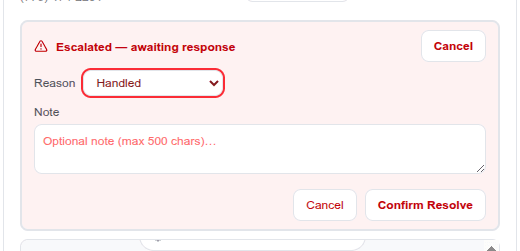
Click Resolve Escalation on the red banner. A short form appears with a reason dropdown and an optional note:
| Reason | What it means | Triggers cooldown? | Releases takeover? |
|---|---|---|---|
| Handled | Real issue, team member took care of it | No | Yes |
| False positive | Escalation rule fired wrongly | Yes | No |
| Spam | Customer message was spam / bot / wrong number | Yes | No |
| Duplicate | Already handled via another lead or channel | Yes | No |
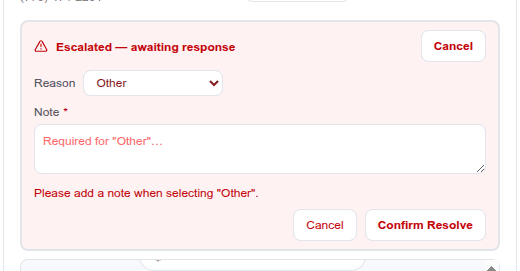
| Other | Catch-all — a note is required | No | No |
Why takeover release depends on reason: resolving as Handled signals that the agent completed the work, so AI can safely resume — the takeover is released automatically. For False positive / Spam / Duplicate the escalation clears but takeover stays: a non-escalation team member may still want to handle the conversation, and releasing without explicit agent intent could surprise them. The "no AI reply after human reply" safety rail keeps AI from responding immediately on top of the agent's last message even after release.
Picking Other requires a note. If you leave the note empty and click Confirm Resolve, an inline error appears next to the textarea:
Automatic resolution
Three things clear an open escalation automatically — no manual click needed:
- A team-member reply on the conversation (SMS or email). If the sender is on the escalated team, replying marks the escalation
handled. - Task completion with a resolution reason — marking the callback task complete with any resolution reason closes the escalation.
- Task completion with disposition
connectedorvoicemail_left— even without an explicit reason, a successful callback implies the escalation is handled.
Non-team replies do NOT auto-resolve, and a plain no_answer / wrong_number disposition does NOT auto-resolve — both leave the banner up so the right person still closes it.
Cooldown on noisy resolutions
When you resolve as Spam, False positive, or Duplicate, the system stamps a cooldown window on the lead. Within that window, rule-triggered escalate actions on the same lead are suppressed — the AI handles the next incoming message instead of re-escalating. A system note is added to the conversation:
The cooldown is 2 hours.
Cooldown bypass: SLA breaches, guardrail violations, and any escalate action carrying a critical / urgent / emergency reason ignore the cooldown and fire immediately. These paths exist specifically for cases where suppressing an escalation would cause harm.
Stacked banners
When a lead is both escalated and taken over (e.g. you triggered the escalation then took over to reply yourself), both banners stack:

The takeover banner becomes compact (single line) when the escalation banner is also visible, to keep the combined footprint small. Resolving the escalation does not release the takeover, and releasing the takeover does not resolve the escalation — they're independent.
Re-escalated notifications
When an already-escalated lead gets new activity (e.g. the customer sends another message), the system fires a re-escalated push notification instead of a fresh escalation alert. This avoids piling "ESCALATION!" notifications on agents who are already looking at the thread, while still surfacing the new activity.
Tips
- Start with one conversation. Take over a single thread to get comfortable with the flow before using it broadly.
- Reply cadence helps teams. Even a 30-second delay gives agents enough time to review and intervene before AI sends.
- Auto-release is your safety net. You don't need to worry about forgetting to release—conversations are automatically returned to AI at the end of each business day.
- Check the scheduled reply banner. If reply cadence is on, always glance at the banner before composing your own reply to avoid sending a duplicate.