

Use the softphone
Answer and make calls in your browser with the built-in softphone, no app install required.
What the softphone is
The softphone is a built-in browser phone that lets you answer and make calls directly from the Signals dashboard. It works in desktop browsers and in the mobile app, with no plugin needed.
Opening the softphone
The softphone appears as a round button in the bottom-right corner of the dashboard.

Click it to expand the softphone, with the keypad and call controls.
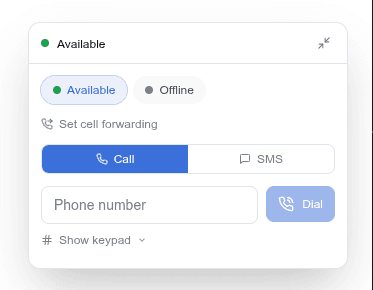
Setting your status
Before you can receive calls, set your status to Ready:
| Status | Receives calls? | When to use |
|---|---|---|
| Ready | Yes | You're available to take calls |
| Off duty | No | You're done for the day, or stepping away |
Those two are the ones you choose. Signals sets two more on your behalf as calls come and go, and you cannot pick them: On a call while you are on one, and Wrapping up for a moment afterwards while you finish your notes.
Your status is visible to your team on Phone & Routing → Call Routing.
Receiving a call
When an incoming call arrives:
- You hear a ringtone (configurable in Preferences → Notifications)
- A push notification appears if you have the mobile app installed
- The softphone shows the caller's name and number (if known)
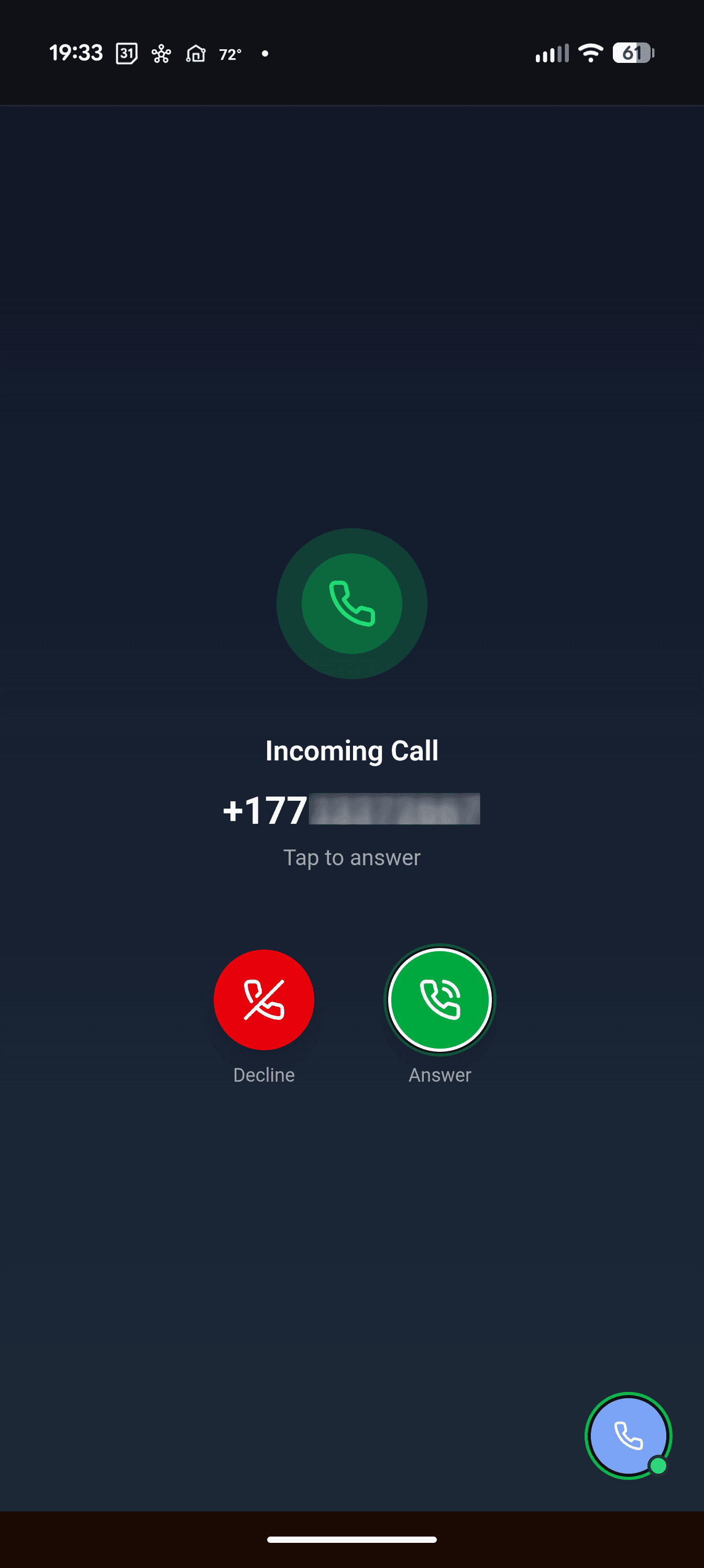
- Click Accept to answer or Reject to decline
On mobile, incoming calls show a full-screen call screen with large accept/reject buttons.
Before the call connects, you'll hear a whisper announcement: "Call for [Business Name]." This tells you which business line the call is for.
During a call
While on an active call, you have these controls:
- Mute: toggle your microphone on/off
- Hold: place the caller on hold (they hear hold music)
- Keypad (DTMF): press numbers during the call (for IVR menus, extensions, etc.)
- Transfer: hand the call to a colleague, a department, or an outside number
Making an outbound call
- Click the softphone button to expand it
- Use the keypad to dial a number, or select from recent calls
- Click the call button to dial
Outbound calls show your Signals business number as the caller ID.
Transferring a call
To transfer an active call:
- Click the Transfer button during the call
- Choose a destination:
- A colleague: pick a teammate. The call rings every device they are signed in on, not just one
- A department: pick a named list such as Billing or Scheduling, if your account has departments set up. A department with nobody in it is marked, so you do not send a caller somewhere nobody will answer
- An outside number: type a number that has no Signals account. Managers and admins only
- The call transfers and you're disconnected from it
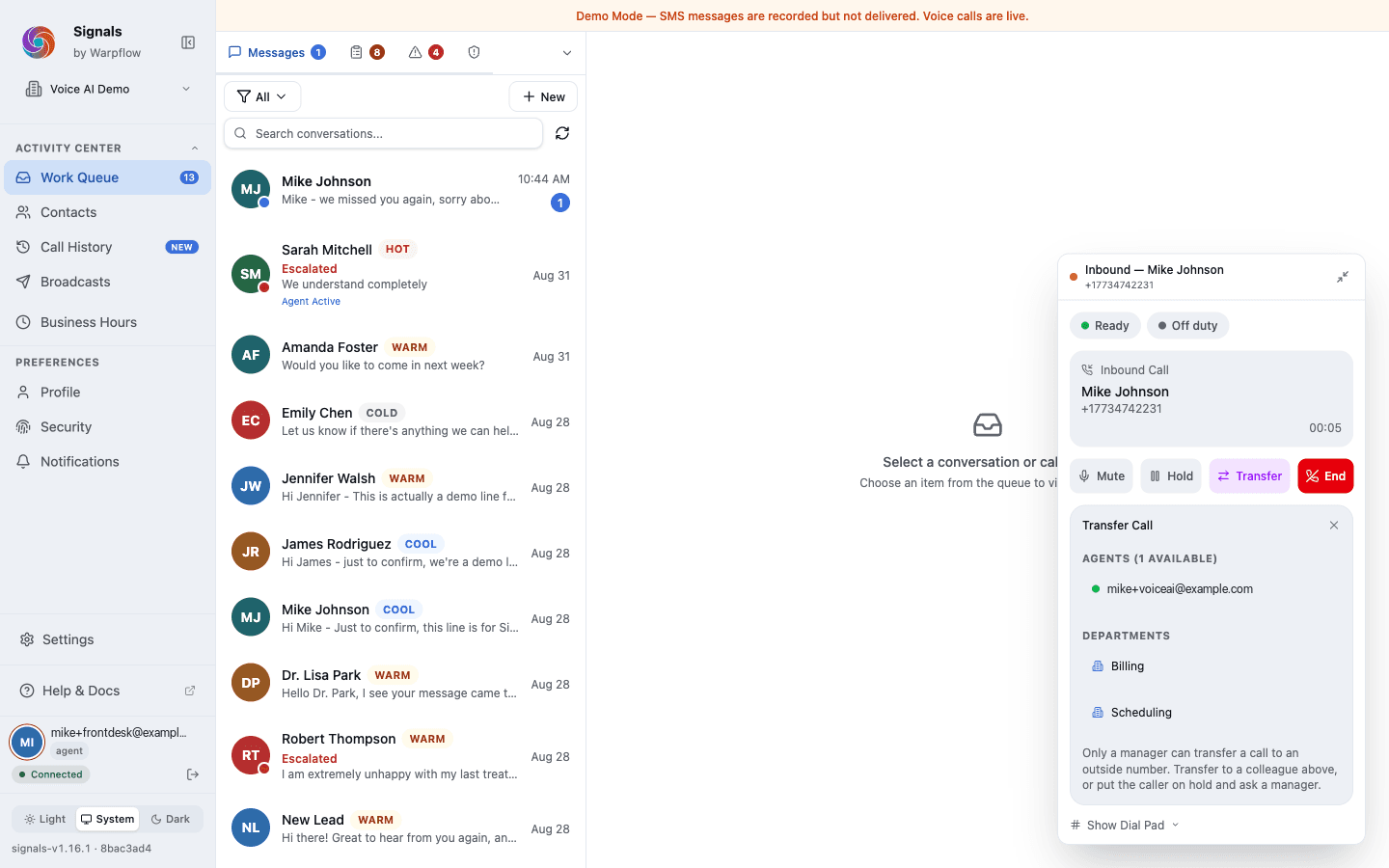
Sending a caller to a department does not need a manager. Any agent can do it.
The active call mini-bar
On mobile, when you navigate away from the softphone during an active call, a mini-bar persists at the top of the screen. It shows the call timer and quick controls (mute, hang up) so you can manage the call while checking other pages.

Troubleshooting
No ringtone when a call comes in:
- Check that notification permissions are Allowed in your browser settings
- On mobile, make sure push notifications are enabled (Preferences → Notifications)
- Some browsers block audio autoplay; interact with the page (click anywhere) to unblock audio
- Verify your status is set to Ready in the softphone
- Check Settings → Profile → What rings you. It lists the main line and every department and says whether you answer each one. Being in no department, or left off the main line, is a far commoner reason than a browser setting—and it is not something you can tell from the softphone itself
Microphone not working:
- Check that browser microphone permissions are granted for the Signals dashboard URL
- On Chrome: click the lock icon in the address bar → Site settings → Microphone → Allow
- Try a different browser if the issue persists
- Restart the browser if permissions were just changed
Echo or feedback:
- Use headphones to prevent speaker audio from feeding back into the microphone
- Check that only one browser tab has the dashboard open
Tips
- Set your status to Available when you're ready for calls. If you forget, you won't receive any.
- Use headphones for call quality, especially in open offices.
- The softphone works in the mobile app. Install Signals on your phone and you have a mobile business phone with push notifications.
- After a call, set your status to After Call Work while you write notes. This prevents new calls from interrupting you.