

Manage households and shared phones
Link dependents to the person who holds the phone, then label who each incoming message is about.
What households are for
Sometimes one phone number belongs to more than one person. A parent books appointments for two children. A caregiver handles messages for a relative. Every text arrives from the same number, so without help the system treats all of it as one person's conversation.
Households let you say who else shares a phone. You link dependents to the guardian—the person who actually holds the number—and staff can then see the whole household from either contact, and label individual messages with who they're about.
This is an optional feature and it's off by default. If you don't see a Household section on your contact panels, it isn't switched on for your account—contact support and we'll enable it.
Important: linking a dependent turns off AI auto-replies for that contact. See What happens to AI replies below—this is the main trade-off and you should understand it before you start.
Link a dependent
The Household section appears on a contact's panel—both in the work queue's context panel and on the contact detail panel. It lives on the contact, not the conversation, so you can set up a household before anyone has sent a message.
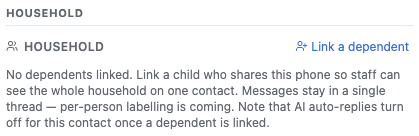
- Open the contact who holds the phone—the guardian.
- In the Household section, click Link a dependent.
- Search for the person. If they aren't in your contacts yet, click Add New Contact to create them.
- Pick them, and they're linked.
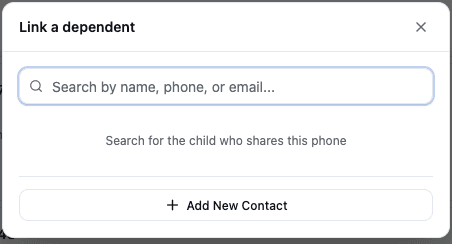
A dependent doesn't need a phone number or an email—only a name. That's the point: the guardian holds the phone, so the child usually has no contact details of their own.
When you link someone, their conversations move to the guardian, and you'll see a toast telling you how many moved. Their phone number moves to the guardian too—unless they have their own, different number, in which case it stays on their contact (see the questions below). On the first dependent you link, the toast also warns you that AI auto-replies are now off for that contact.
Those moved messages arrive unlabelled, so expect Needs review to have a backlog the first time you open the thread. Work it down as you go rather than in one sitting.
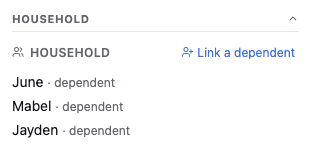
Each dependent shows as a row marked · dependent. Hover a row for two controls:
- Pencil—rename the dependent inline. Press Enter to save, Escape to cancel.
- ×—remove them from the household. You get an inline Remove
<name>? confirmation first.
Removing a dependent doesn't delete the contact—it just makes them a standalone contact again. Use it when a child turns 18, gets their own phone, or was linked by mistake. If the dependent kept their own number as a second-order reference, removing them restores it—they receive messages directly again at that number. Conversations that moved onto the guardian while they were linked stay with the guardian.
Messages already labelled about that person return to Needs review so you can re-file them (see Filter the thread by person).
When you remove the last dependent, AI auto-replies turn back on for the guardian, and the toast tells you so.
What happens to AI replies
AI auto-replies switch off for any contact that has a dependent linked.
The reason is straightforward: when a message arrives on a shared phone, we can't reliably tell which member of the household it's about. An AI reply that assumes the wrong person is worse than no reply at all—especially where health information is involved. So the AI stays out of it and your staff write the replies.
Inside the conversation you'll see a banner explaining this:
AI replies are off for this household
We can't yet tell which dependent a message is about, so AI stays out of it. Label each message and reply manually.

The banner is informational—there's no override button, on purpose.
What's switched off is the AI work: no reply is drafted, and messages in a household conversation aren't AI-classified or scored. What keeps working is everything deterministic—messages are still received and logged, your routing rules still evaluate, and the escalations and notifications those rules drive still fire. You send SMS and email from the thread exactly as you normally would.
One caveat worth checking: because nothing is classified or scored, a routing rule whose condition depends on AI classification or lead score can't match in a household conversation. Rules based on keywords, channel, or business hours are unaffected. If you rely on an AI-condition rule to escalate urgent messages, add a keyword-based equivalent so household contacts are still covered.
Label who a message is about
Messages stay in one thread per contact. Households never split a conversation into separate threads—you label the messages instead, and filter the thread in place.
Every incoming message in a household conversation carries a small chip showing who it's about. Outgoing replies don't have one.
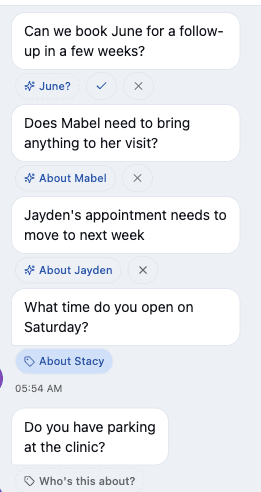
There are four states. Filled means a person decided. A solid outline with ✨ means the system decided. Dashed means it's still a question—either nobody has answered it, or the system has a guess it isn't sure enough to apply.
| Chip | What it means | What to do |
|---|---|---|
| Who's this about? (dashed grey) | Nobody has labelled it and the system couldn't tell | Click it and pick someone |
| About Jayden (filled) | A person labelled it | Nothing—click to change it if it's wrong |
| About Jayden (outline + ✨) | The system labelled it automatically because it was confident | Nothing. Click × to undo, or the chip to change it |
| Jayden? (dashed outline + ✨) | The system has a guess but isn't confident enough to apply it | Click ✓ to confirm or ✕ to reject |
To label or change a message, click the chip. A menu opens listing the guardian first, then each dependent, plus Clear label if it's already labelled.
If you use a screen reader, the chips announce themselves differently: "Message is about Jayden" (a person decided), "AI labelled this message as about Jayden" (applied automatically), and "AI suggests this message is about Jayden" (a guess awaiting you).
Labelling is a normal part of the workflow, not an audit chore—the labels are what let us eventually scope AI replies to the right person, and they're what the system learns its guesses from.
How the system guesses
There's no AI model involved here, and nothing about your messages is sent anywhere to make these guesses. It works two ways:
It found a name. If exactly one household member's first name appears in the message—"Can Mabel come Thursday?"—it labels the message itself and shows the solid-outline sparkle chip. If two names appear, or none, it says nothing.
It's following the thread. If a message arrives right after one of your replies, it may suggest that the message continues whatever that exchange was about. This is only ever a suggestion—the dashed chip—never applied automatically, because a guess built on a guess compounds errors. It also only ever follows a label a person confirmed—it never builds on another suggestion.
There's one more safeguard worth knowing about. Some first names are also ordinary English words—June, May, Grace, Mark, Rose, Hope, Bill, Will, Sunny, and several dozen more. When a match lands on one of these, the system holds it as a suggestion instead of applying it, because "see you in June" probably isn't about a person named June. You'll see the dashed chip and confirm it yourself if it happens to be right.
The bias is intentional. A held suggestion that was correct costs you one extra tap. A confidently wrong label attaches one person's health information to another, so the system errs toward asking.
Filter the thread by person
Below the AI-off banner is a filter bar: All, then one chip per household member with a count, then Needs review with its own count. A member with no labelled messages yet shows no number.

Clicking a filter narrows the thread in place—it never navigates you somewhere else. The conversation stays one conversation.
- A member's name shows every incoming message labelled about that person—both the ones staff labelled and the ones the system applied on its own. Replies aren't shown in this view, since replies aren't labelled.
- Needs review shows everything that still needs a person to decide: unlabelled messages, and unconfirmed suggestions.
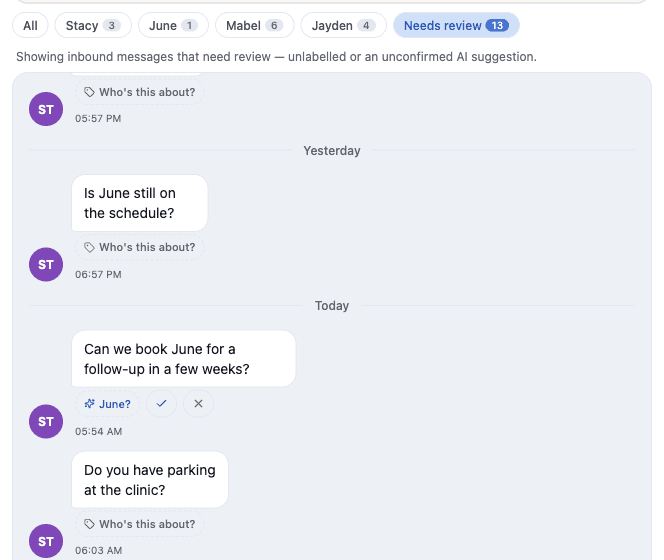
Messages the system auto-applied confidently are not in Needs review. Requiring you to confirm them individually would defeat the purpose of applying them.
One case that does land in Needs review: a message labelled about someone who has since been removed from the household. Rather than showing a broken label, the chip resets so you can re-file the message.
Review labels from the work queue
Once a contact has at least one dependent, a Message subjects card appears in the work queue's context panel—the right-hand panel beside the conversation. (It isn't on the standalone contact detail panel.) It gives you the household at a glance without scrolling the thread.
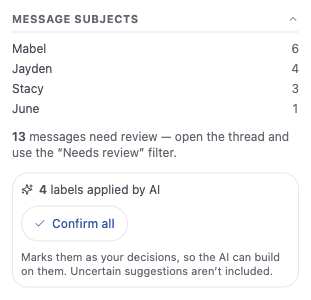
It shows three things:
- A count per person—how many messages are labelled about each household member, including labels the system applied itself.
- A pointer to anything needing review, if there is any: "13 messages need review — open the thread and use the 'Needs review' filter." This is deliberately just a pointer. There's no bulk action for uncertain guesses, because confirming things you haven't read is exactly the failure this feature exists to prevent.
- A Confirm all button for labels the system applied confidently, if there are any.
Confirm all marks the AI-applied labels as your decisions. Uncertain suggestions are never included—only the ones the system was already confident enough to apply. This is the only place to do that in bulk; individual auto-applied chips don't have a ✓ button, because there's nothing pending to affirm.
If some of the writes fail, you'll be told honestly how many succeeded—"Confirmed 3, 1 failed — retry the rest"—rather than the card silently rolling back.
Tracking how accurate the labels are
Every time someone confirms, corrects, or rejects a label, it's counted. Those counts show up in your metrics as subject_label_* entries and are what we use to tune how confident the system has to be before it applies a label on its own.
A high correction rate means it's confidently wrong too often and the threshold needs tightening; near-zero corrections mean it could be loosened. These are aggregate counts only—they record how often the classifier was corrected, never who a message was about or what it said.
Good practice
- Link the guardian's contact to the phone, not the child's. The guardian is whoever the number actually belongs to.
- Give dependents the first name people actually text. The classifier matches the dependent's first name literally—if the family writes "Jay" but the contact says "Jayden," it won't match. Single-letter names are ignored entirely.
- Label as you go. Labelling while you're already reading the message costs nothing; a backlog under Needs review is a chore.
- Don't confirm without reading. The ✓ on a suggestion means you checked it. That's the whole value of the label.
- Unlink when a dependent gets their own phone. They become a standalone contact and, if they were the last dependent, AI replies resume for the guardian.
Common questions
Does linking a dependent merge the two contacts? No. They stay separate contacts. Linking moves any existing conversations to the guardian and records the relationship. It also moves their phone number to the guardian—unless they have their own, different number, which stays on their contact (see below).
Can a dependent have their own phone number? They can, and the guardian's number is never touched. A household routes through one number—the guardian's—so when you link someone who has their own, different number, Signals shows a short confirmation: their conversations move to the guardian, and their own number stops receiving messages in Signals but stays on their contact for reference. Because it's kept, removing them later restores it (see above). If the dependent already shares the guardian's number, or has no number of their own, linking is one tap with nothing to confirm.
Does the customer see the labels? No. Chips, filters, and the household itself are internal only—nothing about them appears in a text message.
Will AI replies come back on? For a specific contact, yes—as soon as the last dependent is unlinked. Across the board, scoped AI replies for households are planned, and the labels you're creating now are the foundation for it.
Can a dependent have their own dependents? No. Households are one level deep: a guardian and their dependents.
Who can link and unlink? Any staff member with access to the contact. Every link and unlink is audit-logged against the person who did it, as required for HIPAA.
See also
- Take over a conversation—pause AI on a single conversation
- Manage contacts—creating and editing contacts
- HIPAA—how protected health information is handled