

Manage current offers
Keep your specials in one place, give them start and end dates, and have Signals recite them on your hold announcement, your voicemail, and your after-hours text.
What offers are for
An offer is one sentence about a special you are running right now: "20% off cleanings in September." You write it once, on your Business Profile, and give it an end date. Signals recites it where callers and texters already land, and stops reciting it on the day it ends without anyone editing a greeting.
Before offers existed, the same sentence had to be pasted into several separate free-text boxes and remembered on the first of the month. Offers replace that with one list.
Before you start
- You need the Manager or Admin role. Agents can neither see nor edit the offers list.
- Offers themselves need no AI and are available on every plan. Only one of the places they can appear, the AI-written reply, requires Pro or Enterprise.
- Every place offers appear is off until you turn it on. Adding an offer on its own changes nothing a caller or a texter receives.
Step 1: Write your offers
- Go to Settings → AI & Automation → Business Profile
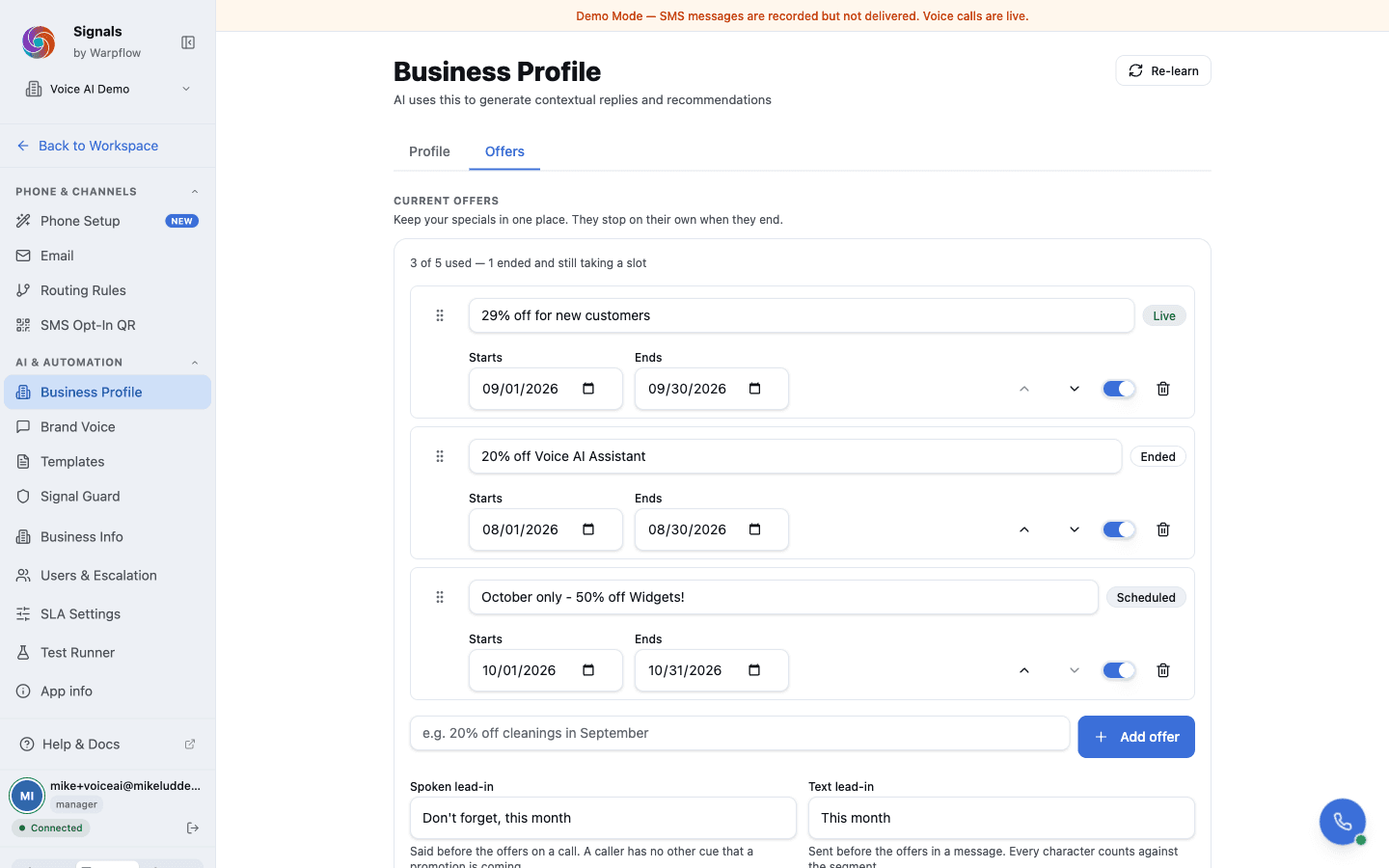
- Scroll to Current offers
- Type your offer into the New offer box and click Add offer
You can keep five offers. The section counts them for you: "2 of 5 used." Each offer is up to 200 characters, which is about two short sentences.
Write the offer as the sentence you want said out loud. Signals adds a full stop
if you leave one off, but otherwise it recites your words exactly. Do not put
template variables such as {{contact.first_name}} inside an offer; the box
refuses them, because an offer is read to a caller who has no name attached yet.
Order matters. Offers are recited in the order they appear in the list. Drag the grip handle to reorder them, or use the up and down arrows if you prefer the keyboard. The first offer in the list is the first one a caller hears.
Each offer also has its own Recite switch, so you can park an offer without deleting it and bring it back next month.
Step 2: Give each offer dates
Every offer has an optional Starts and Ends date.
- Both days are included. An offer ending on
2026-09-30is recited all day on 30 September, and is silent from 1 October. - The dates are read in your business timezone, the one set under Settings → Business Hours, not in the timezone of whoever is reading the message. A Chicago business's September offer runs until the end of 30 September in Chicago.
- Leave either date empty for an open-ended window. An offer with no end date runs until you switch it off.
The badge on each row tells you where the offer stands today:
| Badge | What it means |
|---|---|
| Live | Being recited right now |
| Scheduled | Starts on a future date |
| Ended | Past its end date, and still using one of your five |
| Off | You turned its Recite switch off |
An Ended offer keeps its slot until you remove it, so clear out last month's specials before you add this month's.
Step 3: Choose how each offer is introduced
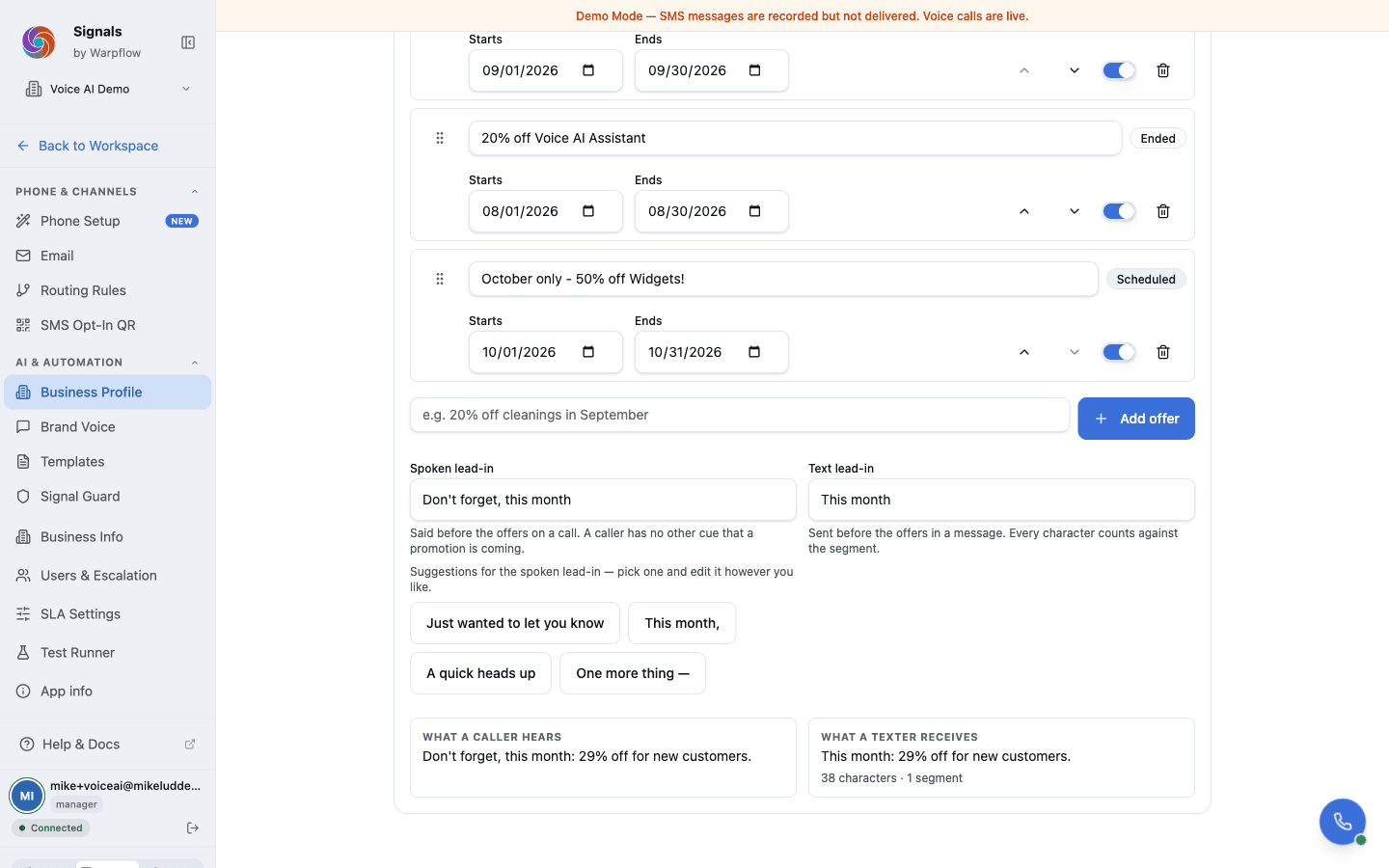
Underneath the list are two lead-ins. A lead-in is the phrase that introduces the offers, and there is one for each channel, because a caller and a texter need different things.
- Spoken lead-in: said before the offers on a call. A caller has no other cue that a promotion is coming, so something like "One more thing this month" is worth having.
- Text lead-in: sent before the offers in a message. Every character counts against the message segment, so keep it short.
Both are optional and up to 120 characters. Leave one empty and the offers are read out on their own with no preamble.
The two previews below them, What a caller hears and What a texter receives, show the finished sentence as you type, with the character and segment count for the text version.
Step 4: Recite offers on the phone
There are two places on a call where offers can be read out. Both are off by default, and each is a separate switch.
Go to Settings → Phone & Channels → Phone Setup.
On the hold announcement
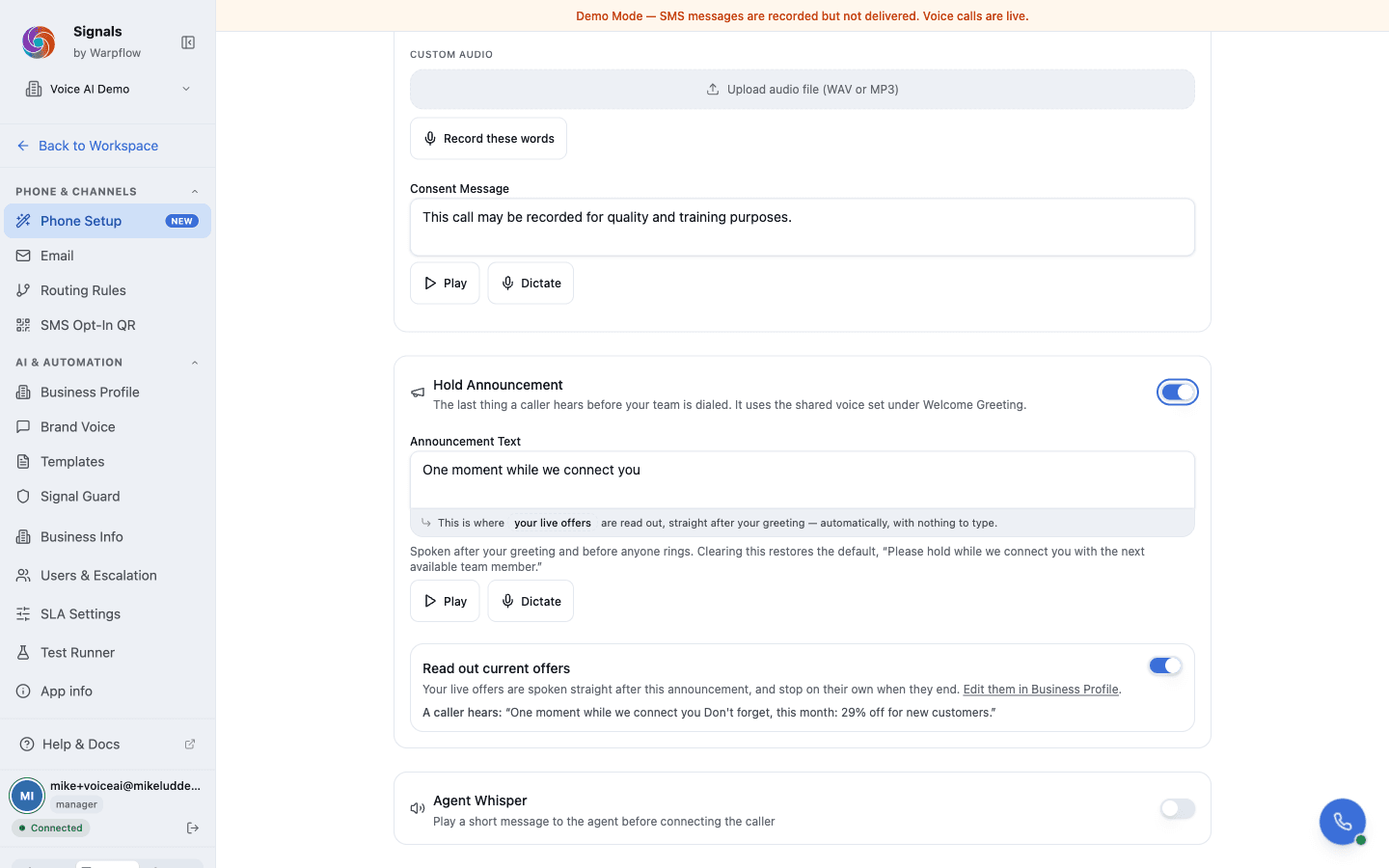
On the Setup tab, find the Hold Announcement card. This is the last thing a caller hears before your team is dialed.
- Turn the hold announcement itself on, if it is not already. The card says "Off — callers go straight from the greeting to your team ringing" when it is not in use
- Switch on Read out current offers
The card then shows you the finished line under A caller hears. Turning offers on does not turn the announcement on: if the announcement is off, nothing is read out.
On the voicemail greeting
On the Voicemail tab, switch on Read out current offers.
Your offers are spoken straight after your voicemail greeting, just before recording starts. Consider whether you want them there before you turn it on: these are seconds between a caller and the beep they are waiting for.
Recorded greetings keep working
Signals never edits a greeting to add your offers. The offers are a separate step that follows the greeting. That is true whether the greeting is text that Signals speaks or an audio file you recorded yourself: your recording plays exactly as you approved it, and the offers are read out after it. You do not have to choose between a recorded greeting and current offers.
Your welcome greeting is never touched. Offers are only ever read out at the two places above.
When nothing is live
If offers are switched on but nothing is running today, the call sounds exactly as it does now. No extra pause, no half sentence. The screen says so too: "No offer is live today, so nothing extra is read out yet."
Step 5: Put offers in your after-hours text
Offers reach a text message through a template variable.
| Variable | What it inserts |
|---|---|
{{offers.current}} | Your live offers as a sentence, with your text lead-in. Empty if none |
{{offers.count}} | How many offers are live, as a number |
You have to add the variable yourself. Signals does not put it into your after-hours reply for you, because that would change a message your customers already receive.
- Go to Settings → AI & Automation → Templates
- Open After Hours Auto-Reply
- Click into the body and add
{{offers.current}}where you want the offers to land, or click the variable in the Offers panel to insert it - Click Preview to see the finished message
- Save
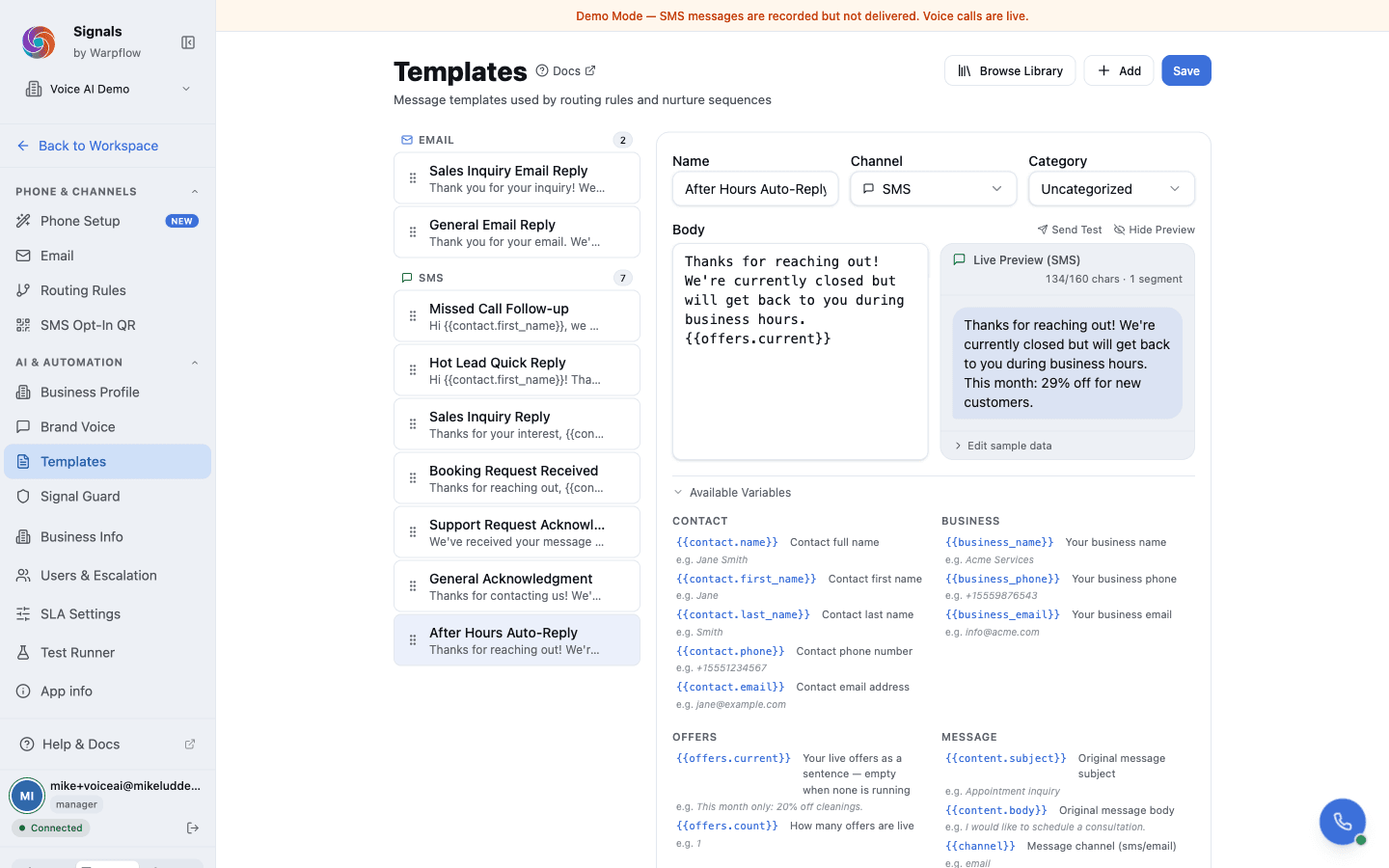
The preview sizes the message on the finished text, offers included, not on
what you typed. {{offers.current}} is twenty characters that can expand into a
paragraph, so watch the segment count: a two-segment message costs twice as much
to send as a one-segment one.
When no offer is live, the variable resolves to nothing and takes the space before it with it, so the message reads normally. A variable sitting alone on its own line leaves a blank line behind, so put it at the end of a sentence or a paragraph rather than on a line by itself.
The same two variables work in any SMS or email template, and in a broadcast. See Write message templates for how templates and variables work generally.
When the AI writes your after-hours reply
Step 5 applies only if your after-hours reply is a template. Most accounts are set up that way, and there is a rule called After Hours Auto-Reply on your Routing Rules page that sends it.
Some accounts are set up so the AI writes the after-hours reply instead, with no template involved. On those, the After Hours Auto-Reply rule is switched off and there is no body to edit. Check Settings → AI & Automation → Routing Rules to see which you have.
If the AI writes your replies, it is told about your live offers and can mention them when a customer's message makes it relevant. It is not required to, and it will not recite all of them at every opportunity: it mentions an offer when the conversation calls for one. There is nothing to switch on, and nothing to edit. Your offers list is the only control.
This needs Pro or Enterprise, like every AI feature. See Set up AI replies.
Where offers do not appear
So you are not left wondering:
- Your welcome greeting, the first thing a caller hears, is never changed
- Email does not carry offers automatically, though
{{offers.current}}works in an email template if you add it - The AI voice assistant's live conversation does not recite offers
- Signals does not send offers out to a contact list on its own. You can put
{{offers.current}}into a broadcast you send yourself
Tips
- Set an end date on every offer. That is the whole point: an offer with an end date stops on its own, and nobody has to remember the first of the month.
- Clear out Ended offers. They still take one of your five slots.
- Read the preview out loud before you switch the phone recital on. What reads well on a screen can be a mouthful on a call.
- Keep the text lead-in short. It counts against the segment of every message that carries your offers.
- Test it. Call your own number after hours, and text it, and check that you hear and read what you expected.
Related guides
- Set up phone & voice: greetings, voicemail, and recordings
- Write message templates: variables and previews
- Set up business hours: the timezone your offer dates are read in
- Set up AI replies: when the AI writes the reply instead of a template